How to Remove Location Data from Photos (iPhone, Android, Windows, Mac)
Step-by-step instructions for every device — and the hidden traps in native OS tools that quietly leave your GPS coordinates intact.
You sent a friend a photo. Just a latte from a cafe — nothing remarkable. The reply: "Nice spot at [your exact street address]." They didn't guess. They opened the file properties and read the GPS coordinates your iPhone wrote into the JPEG. Every photo your phone takes records your precise location, and when you share that file through email, iMessage, WhatsApp's "Document" attachment, or Google Drive, every byte of that metadata travels with it. The good news: you can remove location data from photos before they leave your device — but several of the built-in tools that promise to do it don't actually finish the job.
This guide walks through every device — iPhone (iOS 18), Android (with the per-manufacturer differences), Windows 11, and macOS — and explains what each native tool actually does and doesn't do. It then covers a verification step you can use to confirm your file is clean, plus the most common pitfalls people fall into. For the broader question of why photo metadata is dangerous in the first place — McAfee, military leaks, stalking — see our deep dive on what your photos reveal about you.
Why You Should Remove Location Data from Your Photos
A modern smartphone photo records GPS coordinates accurate to within a few meters, the device model, the lens used, and the precise second the shutter fired. A photo taken in your bedroom records your home address. A photo at a cafe records the cafe. A series of photos tells a complete story about where you live, where you eat, and when you do both. Most major social platforms strip this data when you upload. Email, iMessage, cloud storage links, and many smaller forums do not — and even on the platforms that strip it for other viewers, the platform itself reads and stores the data on its servers. The full risk picture (with documented incidents like the John McAfee case) is in our companion guide on EXIF metadata privacy. This article is the practical companion: how to actually remove it.
How to Remove Location from Photos on iPhone (iOS 18)
The most reliable approach: prevent GPS at the source
The simplest fix is to stop your camera from recording GPS at all. One toggle, and every future photo lands without coordinates.
- Open Settings
- Tap Privacy & Security
- Tap Location Services
- Scroll to Camera and tap it
- Choose Never
Apple's exact wording: "Go to Settings > Privacy & Security > Location Services > Camera, then tap Never." (Apple Support.) Photos taken after this still record camera model, exposure settings, and timestamps — but no GPS. For most people this is the right default.
Strip GPS for one share at a time (Share Sheet)
If a photo already has GPS embedded and you want to share it once without coordinates:
- Open the photo in Photos
- Tap the Share button (the square with the up arrow)
- Tap Options at the top of the share sheet
- Toggle Location off
- Tap Done, then send as usual
Apple's documented procedure: "Tap the Share Sheet button, then tap Options. Turn off Location, then tap Done." This strips GPS from this particular share only — the original file in your library still has the coordinates. Next time you share, you have to toggle it again. And only GPS comes off; camera model, timestamp, and lens info all travel with the file.
The "Adjust Location" trap — it doesn't actually erase your GPS
iPhone's Photos app lets you edit the location attached to a photo, including a "No Location" option:
- Open Photos and tap Albums
- Open the photo and tap the More button (three dots)
- Tap Adjust Location
- Tap No Location
Apple documents this procedure on its personal safety page. What Apple does not document is the critical limitation: this does not erase GPS from the original EXIF data. Photos hides the location in the edited working copy that the app shows you, but the underlying original file still contains the coordinates.
One user testing this on Apple's own discussion forum put it cleanly: "It looks like 'Hide Location' removes the location information from the edited version of the picture, so location is blank in Photos and in exports using File > Export > Export nn Photos. If the original had a location, then that remains, and it will be included in File > Export > Original."
Practically: AirDrop and iMessage shares — which go through the Photos pipeline — do receive the hidden version. But anyone who downloads the original from iCloud.com, syncs your library to a Mac, or chooses "Export Unmodified Original" will see the GPS intact. If you think you erased the location, the original on Apple's servers still has it. To actually delete GPS, use the source-prevention method above, the share-time strip, or run the file through ExifTool or our browser-based EXIF Remover.
iCloud originals carry the original GPS too
This follows from Apple's non-destructive editing model — every Photos edit is layered on top of the untouched source file. Apple promotes this as a feature ("Photos preserves your originals"), and it's true. The flip side is that location edits are part of the layered metadata, not the original. Downloading via "File > Export > Export Unmodified Originals" or grabbing originals from iCloud.com restores any GPS your camera recorded. Apple does not explicitly document this consequence, but it is consistently reported by users who have tested exports.
How to Remove Location from Photos on Android
Turn off location tags in your camera app
Every Android manufacturer ships its own Camera app with its own toggle name for the same setting. Google's official camera location settings page lays it out by brand:
| Manufacturer | Toggle name |
|---|---|
| Google Pixel | "Save location" |
| Samsung Galaxy | "Location tags" |
| OnePlus | "Store location data" |
| Motorola | "Save location" |
| Xiaomi | "Save location info" |
| LG | "Tag locations" |
| HTC | "Geo-tag photos" |
The path is the same shape on every brand: open the Camera app, tap Settings, find the toggle and turn it off. On a Pixel specifically, Google's Pixel Camera help says: open Camera, tap Settings (bottom left), tap More settings, turn off "Save location." On a Samsung Galaxy, Samsung's support page says: launch the Camera app, tap Settings, toggle "Location tags." Like iPhone, this only affects future photos.
The Google Photos limitation — it can't remove camera-added GPS
Google Photos does have a "Remove location" feature, but Google itself documents the limitation in plain English: "If a location was automatically added by your camera, you can't update or remove the location in Google Photos." (Google Photos Help.)
What you can remove are estimated locations Google Photos infers, or locations you manually added yourself. The GPS your camera embedded at capture time is off-limits inside the Google Photos app. Try to bulk-edit several photos and Google will explicitly tell you it cannot edit the camera-added ones — those simply get skipped.
To actually remove camera-embedded GPS on Android, you need a third-party app like ImagePipe or Photo Exif Editor, or you can move the photos to a computer and run them through ExifTool or our browser EXIF Remover.
How to Remove Location Data from Photos on Windows 11
The "Remove Properties and Personal Information" procedure
Windows 10 and 11 ship with a built-in metadata removal feature. No install needed.
- In File Explorer, right-click the photo and choose Properties
- Switch to the Details tab
- At the bottom, click the "Remove Properties and Personal Information" link
- In the dialog, pick one of two options:
- "Create a copy with all possible properties removed" (recommended — keeps your original safe)
- "Remove the following properties from this file" (lets you tick individual fields and edits the file in place)
- Click OK
Microsoft does not publish a dedicated documentation page for this File Explorer feature. The procedure is confirmed on a Microsoft Q&A by an Independent Advisor, and matches every third-party Windows guide.
Why the Windows feature doesn't actually do enough
The name suggests it strips everything. It does not. Privacy and forensics consultancy Digital Confidence tested the feature across formats and found that most EXIF survives:
| Format | What survives "Remove Properties" |
|---|---|
| JPEG | Most EXIF data including thumbnails (which may contain pre-crop image data) and camera/lens serial numbers; most XMP and IPTC data |
| TIFF | All EXIF data including thumbnails and serial numbers |
| PNG | Nearly all native properties, plus EXIF, XMP, and C2PA metadata |
| HEIC / HEIF / AVIF | Most EXIF including thumbnails and serial numbers; XMP; C2PA |
The thumbnail residue is especially concerning. EXIF thumbnails can contain the pre-crop version of your image — you can crop out a sensitive corner of a photo, run "Remove Properties," and the EXIF thumbnail still holds the uncropped version. Digital Confidence's verdict: the interface creates "a dangerous false sense of privacy protection". Microsoft does not acknowledge any of this on its support pages.
If you want a real strip on Windows, use ExifTool (it runs on Windows too) or our browser-based EXIF Remover which works in any modern browser without installing anything.
How to Remove Location Data from Photos on macOS
Preview's hidden "Remove Location Info" button
macOS Preview has a button that strips GPS from a photo. Apple's official Preview help page only documents how to view location info, not remove it — but the Remove button exists in the Inspector and works on macOS Sonoma 14 and Sequoia 15. Multiple long-standing guides (PetaPixel, iDownloadBlog) cover the workflow:
- Open the photo in Preview
- Tools > Show Inspector (or press ⌘I)
- Click the More Info tab (the "i" icon)
- Expand the GPS section
- Click Remove Location Info
- Save the file with ⌘S
If the photo has no GPS data, the Remove button does not appear. The catch: Preview's button strips only GPS. Camera model, serial number, timestamps, and exposure settings all stay. If you want to scrub GPS specifically, this is fine. For a full strip, you need a different tool.
Photos.app on Mac — the same trap as iPhone
The Mac Photos app offers a parallel "Hide Location" feature: select photos, choose Image > Location, then either Hide Location or Revert to Original Location. Behind the scenes it uses the same edited-layer approach as iPhone — the original file in the library keeps its GPS. Use File > Export > Export Unmodified Originals and the coordinates come back. Apple does not document this behavior, but it follows from Photos' non-destructive editing model.
Full strip — ExifTool, ImageOptim, or a browser tool
ExifTool by Phil Harvey is the gold standard for metadata work on any platform. Install on macOS via Homebrew:
brew install exiftoolThen the four most useful commands:
# Strip everything (creates photo.jpg_original as a backup)
exiftool -all= photo.jpg

# Strip everything in place — assumes you already have a backup
exiftool -all= -overwrite_original photo.jpg

# Strip GPS only, keep camera settings
exiftool -gps:all= photo.jpg

# Recursively strip every photo in a folder
exiftool -all= -r /path/to/folder/
One caveat from ExifTool's official documentation: "Not all groups are deletable, and ... the JPEG APP14 'Adobe' group is not removed by default with -All= because it may affect the appearance of the image." In practice, all the privacy-sensitive fields (GPS, camera serial, IPTC, XMP) come out cleanly.
If you prefer a GUI, ImageOptim by Kornel Lesiński is free and open-source. Drag a folder of photos onto its window and it optimizes them while stripping metadata. Its own description: "ImageOptim removes EXIF metadata, such as GPS position and camera's serial number, so that you can publish images without exposing private information." You can disable the strip in Preferences if you ever need to keep metadata.
If you'd rather not install anything, our EXIF Metadata Viewer & Remover runs entirely in your browser. Drag a photo in, see every field that's embedded (with GPS shown on a map), and click one button to download a clean copy. Nothing is uploaded to a server.
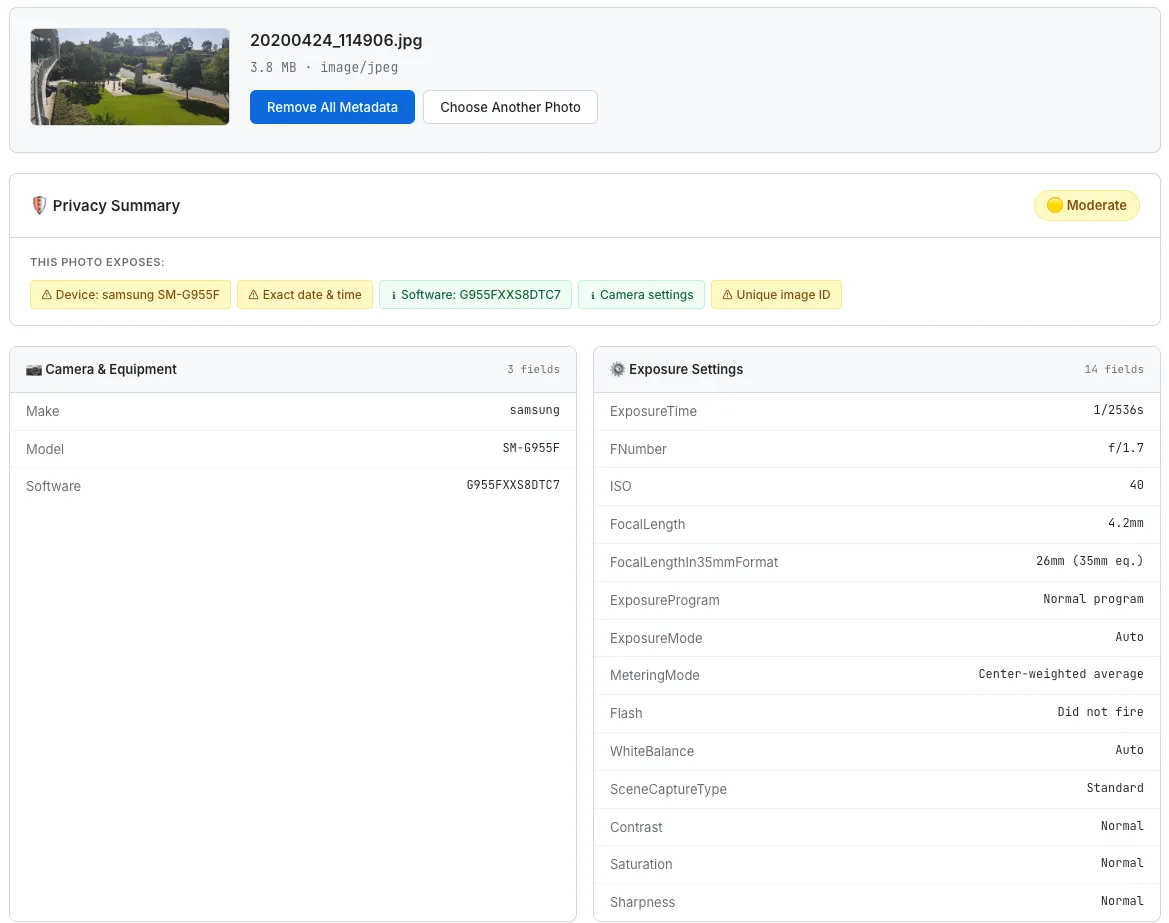
SudoTool's EXIF Metadata Viewer & Remover lets you inspect every metadata field and strip them in one click — entirely in the browser.
Verify That the Metadata Is Actually Gone
Most guides stop at "click strip, you're done." That's incomplete. As you've seen, several native tools claim to remove location while quietly leaving the original behind. The strip isn't finished until you verify the file is clean.
Fastest check — drop the file into a browser EXIF viewer
Open SudoTool's EXIF Metadata Viewer and drag the stripped photo in. A clean file produces one of these results:
- The "No EXIF metadata found" message
- All metadata categories (GPS, Camera, Date & Time, etc.) empty
- No Privacy Summary card and no GPS warning
If you see a red GPS warning, the location is still embedded — your strip didn't work or only worked partially.
Verify with ExifTool
If you have ExifTool installed:
exiftool photo_clean.jpg | grep -iE "gps|location|serial"An empty output means GPS, location fields, and serial numbers are all gone. Anything that prints is still there.
Don't rely on Windows Properties for verification
Right-clicking a file and looking at the Details tab in Windows shows you only a small subset of EXIF fields. A photo can look "clean" in that view while still carrying the camera serial number, thumbnail, and other fields underneath. Use a real EXIF viewer or ExifTool — not Windows' built-in Details tab — to confirm.
Common Pitfalls
WhatsApp's "Send as Document" preserves all EXIF
WhatsApp does strip EXIF from photos sent the normal way (via the photo attachment icon). It does not strip anything from photos sent as a "Document." When you tap the document attachment option and choose an image, WhatsApp transmits the original file untouched — GPS, camera serial, timestamps, all of it.
Amnesty International's Citizen Evidence Lab — a digital forensics resource for human-rights work — confirms this in their guidance for journalists who specifically want to preserve evidence chain: "Images sent as document attachments preserve metadata. You will notice that photos sent like this do not appear as thumbnails." Forensic photographers use document mode on purpose. Most casual users don't realize the distinction exists, and they leak coordinates without knowing it.
Photos you've already shared can't be recalled
If you emailed or iMessaged a photo with GPS three months ago, that file is in the recipient's inbox or Messages history. There's no way to retrieve it. The same goes for files uploaded to a service that doesn't strip metadata — anyone who downloaded a copy still has the original.
For photos already in your iCloud or Google Photos library, you can sometimes update or hide the location going forward, but with the iPhone Photos trap above, "hiding" the location doesn't remove the original GPS from the cloud. The realistic answer is to prevent leaks before they happen: turn off geotagging at the camera level, or strip and verify before sending.
Screenshots don't carry the original photo's EXIF
When you take a screenshot of a photo, the screenshot is a fresh image generated by your operating system — it does not inherit EXIF from the source. Screenshots have their own minimal metadata (creation timestamp, device name) but no GPS coordinates from the original. The exception: if the original photo was displayed with a visible map pin or address text on screen, that information is in the visible pixels of the screenshot, not in the metadata.
Frequently Asked Questions
How can I tell if my iPhone added GPS to a photo?
Open the photo in the Photos app and either swipe up or tap the info ("i") button. If a map appears showing where the photo was taken, the file has GPS coordinates embedded. If no map shows, either the photo has no GPS or the camera's location permission was set to Never when you took it. For a complete view of every metadata field, drop the photo into our EXIF Metadata Viewer.
Does turning off Location Services on iPhone remove GPS from old photos?
No. Settings → Privacy & Security → Location Services → Camera → Never affects only future photos. Existing photos in your library keep whatever GPS they were captured with — you have to strip those separately, either through the share sheet's Location toggle, ExifTool, or a browser-based EXIF remover.
Why doesn't Google Photos let me remove location from my own photos?
Google explicitly disallows it: in Google Photos, you can only edit or remove locations that were estimated by Google or that you added manually. GPS that your camera embedded at capture time is off-limits inside the app. To actually remove camera-added GPS on Android, use a third-party app like ImagePipe or Photo Exif Editor, or move the photo to a computer and use ExifTool or a browser-based tool.
Does Windows' "Remove Properties and Personal Information" actually remove all metadata?
No. The feature removes a small subset of properties — but most EXIF data (including the thumbnail, camera and lens serial numbers, IPTC, XMP, and C2PA metadata) survives across JPEG, TIFF, PNG, and HEIC. Independent testing by Digital Confidence describes this as a "dangerous false sense of privacy protection." For a real strip on Windows, use ExifTool or a browser-based EXIF remover.
I removed location in iPhone Photos with "Adjust Location → No Location." Is the GPS gone now?
Not from the original. Apple's Photos app uses a non-destructive editing model — your location edit is layered on top of the original file, but the original file's EXIF still contains the GPS coordinates. Anyone who downloads the original from iCloud, syncs your library to a Mac, or exports the unmodified original can still read the location. To actually delete GPS, strip the file with ExifTool, our EXIF Remover, or use the Share Sheet's per-share Location toggle.
Does WhatsApp strip EXIF from photos?
Only when you send as a normal photo attachment. If you send the same image as a "Document" attachment instead, WhatsApp preserves all EXIF data — GPS coordinates included. This is confirmed by Amnesty International's Citizen Evidence Lab, which recommends document mode specifically for journalists who need to preserve evidence chain. Most users don't realize the two send modes behave differently.
Do screenshots contain EXIF data from the original photo?
No. Screenshots are new files created by your operating system and do not inherit EXIF from whatever was on screen. Screenshots have their own minimal metadata (creation time, device), but no GPS or camera serial. The exception is anything visible in the pixels themselves — if a map pin or address text was on screen, that's still in the screenshot image, just not in its metadata.
This guide is general privacy education. UI labels and procedures change with operating system updates — verify on your own device before relying on a step in a sensitive situation. If you're managing a serious threat (stalking, domestic violence, doxxing), consult a digital security professional or organizations such as the National Network to End Domestic Violence.
- Apple Support — Manage location metadata in Photos
- Apple Support — Turn Location Services on or off
- Apple Support — See where a photo was taken using Preview on Mac
- Apple Discussions — Hide Location behavior testing (thread 254759593)
- Google Photos Help — Change your camera location settings
- Google Photos Help — Understand, find & edit your photos' locations
- Pixel Camera Help — Change your Camera app settings
- Samsung Support — Activate location tags on Galaxy
- Microsoft Q&A — Remove Properties and Personal Information feature
- Digital Confidence — Remove Properties and Personal Information: a Misleading Feature
- ExifTool — official documentation by Phil Harvey
- ImageOptim by Kornel Lesiński
- Citizen Evidence Lab (Amnesty International) — WhatsApp metadata preservation
- PetaPixel — Easily remove geotag using Mac Preview / Windows Properties
- iDownloadBlog — Remove GPS via Mac Preview