Building a Morse Code Translator That You Can Actually Hear and See
Most Morse code translators convert text just fine. But Morse code isn't text — it's sound and rhythm. I wanted a translator that lets you experience that.
Search "morse code translator" and you get dozens of results. Type your text, get a string of dots and dashes. Most of them work fine. But something is missing.
Morse code was never meant to be text. It's sound. Short beeps and long beeps. When Samuel Morse transmitted "What hath God wrought?" on May 24, 1844, the receiver didn't read dots and dashes on a screen — he heard the clicks of a telegraph sounder. Yet most online Morse code tools in 2026 ignore that entirely and just show you text.
I wanted to build a Morse code translator where you could see the dots and dashes and hear them — a tool that lets you experience Morse code, not just read it.
The Problem With Every Morse Code Translator
I tried the top competitors one by one.
morsecode.world — the most feature-rich Morse code tool on the internet. Audio playback, light flashing, vibration mode, multi-language support, Farnsworth speed control. But the first time you open it, you're greeted by a configuration panel with over 20 options. What's the difference between a telegraph sounder and a CW radio tone? If you don't know, you're already overwhelmed. The UI is functional, but it looks like it was designed in the early 2010s.
morsecodetranslator.com — cleaner UI, copy buttons, audio playback. A solid tool overall. But the output is still a plain text string: .... . .-.. .-.. ---. There's no graphical representation that lets you see at a glance that H is four dots, E is one dot, and O is three dashes. The patterns are there in the text, but you have to mentally parse them.
cryptii.com — the most minimalist of the bunch. Its modular "pipe" interface is clever, letting you chain encoding steps visually. But there's no audio playback at all. It's a developer-oriented text encoding tool, not a Morse code experience.
Every tool shared the same gap. None of them let you "experience" Morse code. They had the features, but not the feeling. Text conversion alone doesn't convey why E is a single dot, why SOS is that specific pattern, or what Morse code actually sounds like in practice.
Dots and Dashes You Can See
.... . .-.. .-.. --- — that's "HELLO" in Morse code. As text, it's a string of dots, dashes, and spaces. It's hard to read quickly, and figuring out where one letter ends and the next begins requires counting spaces.
I wanted to solve this visually. Each dot is rendered as a small blue circle (8px), and each dash as a rounded rectangle (24px × 8px). Symbols belonging to the same letter are grouped together with the corresponding letter label below. Words are separated by empty space.
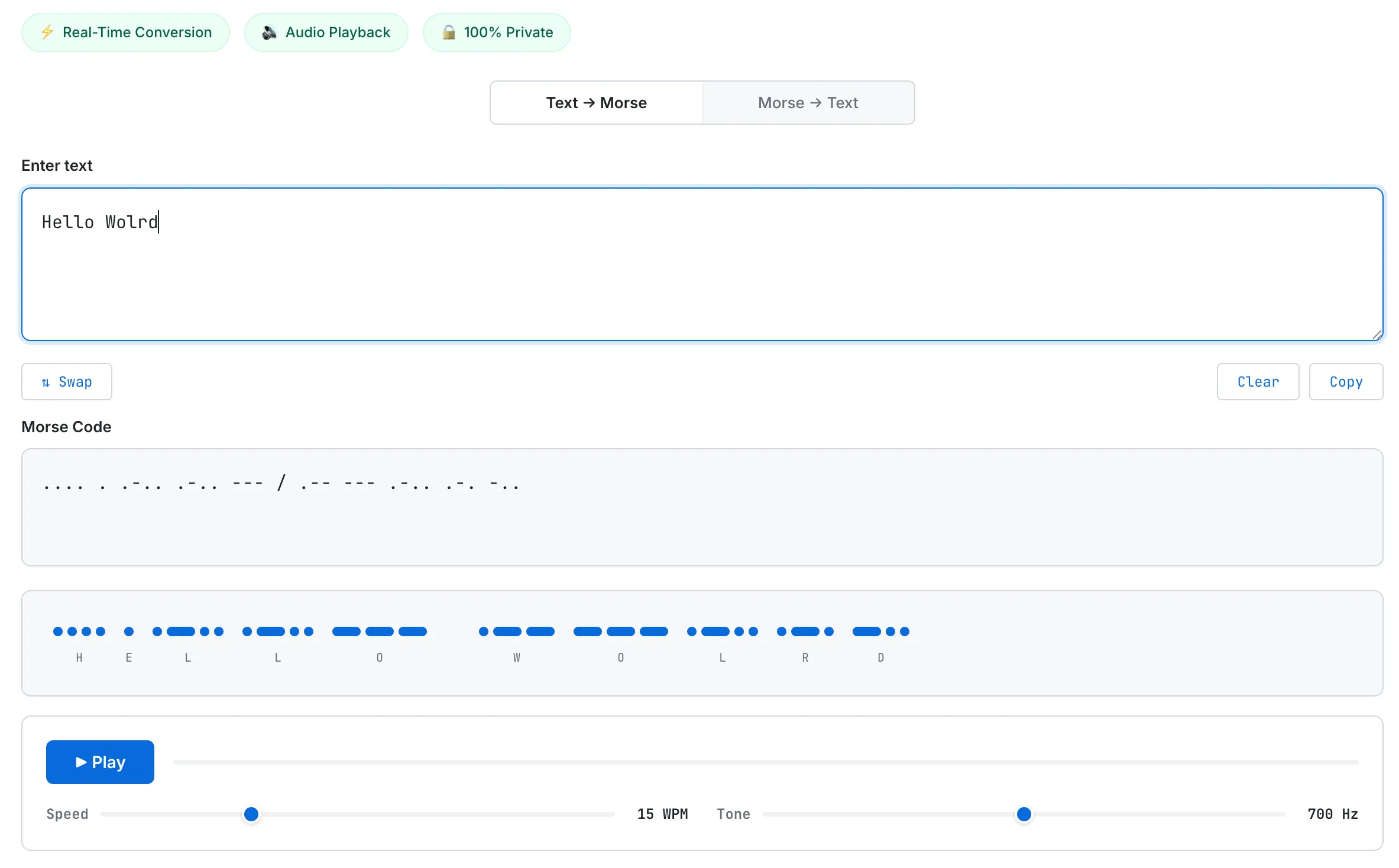
Type text, see every letter's Morse pattern as visual dots and dashes. The blue Play button triggers audio with synchronized animation.
With this layout, you can see the patterns without reading the text. H is four short, uniform dots. O is three long, heavy dashes. E is a single dot — the shortest code in the entire system. That's because Alfred Vail, Samuel Morse's collaborator, visited a newspaper typesetting shop in Morristown, New Jersey and counted how many of each letter the typesetters kept in stock. The most common letter got the shortest code. This frequency-based optimization anticipated modern information theory — Huffman coding — by more than 100 years.
When you press Play, the visual display comes alive. The symbol currently being sounded scales up to 1.4× its normal size, shifts to a brighter blue, and gains a subtle glow effect. The transition duration is 100ms — fast enough to match the percussive feel of Morse code. A slow fade would kill the sharp rhythmic quality of dots and dashes.
Making It Sound Right
Audio playback uses the Web Audio API. I initially considered playing pre-recorded beep sound files with the <audio> tag, but abandoned that approach for two reasons.
First, timing precision. Morse code defines a dot as the fundamental time unit, and every other element is a multiple of it. At 15 WPM, one dot is 80 milliseconds. A dash is 240ms. The gap between symbols within a letter is 80ms. The gap between letters is 240ms. The gap between words is 560ms. If these timings aren't precise, the output isn't Morse code — it's random beeping. The <audio> element can't guarantee this level of precision.
Second, flexibility. The Web Audio API's OscillatorNode lets you control frequency and waveform in real time. When a user drags the Tone slider from 400Hz to 1000Hz, the change is instant. That's impossible with pre-recorded files.
The implementation is straightforward. For each symbol (dot or dash), I create an OscillatorNode connected to a GainNode for volume control. A 700Hz sine wave is the default. The critical detail is preventing click noise at the start and end of each tone. If the oscillator starts and stops abruptly — like a square wave — you hear an audible "pop." To prevent this, I apply a gain envelope: a 5ms linear ramp from 0 to 0.5 at the start, and 0.5 to 0 at the end. Five milliseconds is imperceptible to the ear, but it completely eliminates the click artifact.
The timing for the entire message is pre-calculated. I build an array of every symbol's start time and duration, then schedule all oscillators against the AudioContext's clock. If I used setTimeout to fire each beep one at a time, JavaScript's event loop latency would cause timing drift. The Web Audio API's scheduler runs on a dedicated audio thread, guaranteeing millisecond-level accuracy.
Two Modes, One Toggle
The tool supports bidirectional conversion: text to Morse and Morse to text.
For mode switching, I considered three options: tabs, a dropdown, and a toggle. There are exactly two modes, so tabs feel like overkill — tabs imply the possibility of three or more options. A dropdown hides the choices. A two-segment toggle is the most direct affordance for a binary choice. The active side gets a white background with bold text; the inactive side stays gray. You can see the current mode at a glance.
The Swap button turned out to be surprisingly useful. After converting text to Morse, pressing Swap puts the Morse output into the input field and flips the mode to Morse → Text. The original text appears in the output. Round-trip verification. For someone learning Morse code, this is a quick way to check "did I type this Morse sequence correctly?"
In Morse → Text mode, invalid codes are displayed as a question mark (?) rather than silently dropped. I decided showing errors is better than hiding them. When a user types ---.-, a question mark in the output says "something is wrong here" — which is more useful than a blank space that offers no feedback at all.
The Small Things
The details that don't stand out visually but define the experience.
Real-time conversion. There's no Generate button. Output updates instantly as you type. Morse code character mapping is computationally trivial — a simple object lookup for each character — so there's no debounce. Every keystroke triggers an immediate full recalculation.
Auto-stop on input change. If audio is playing and the user modifies the input, playback stops immediately. Continuing to play stale content while the user is editing would be jarring. A clean stop is the right behavior.
Reference chart as an HTML table. Many Morse code sites provide the alphabet chart as an image. I built it as an HTML table. Search engines can index it. It reflows naturally from four columns to two columns on smaller screens. Screen readers can read it. An image does none of these things.
Timing diagram. Explaining Morse code's timing rules (the 1:3:7 ratio) in text alone isn't intuitive. I visualized the actual timing of the word "HI" using blue blocks (signal ON) and gray blocks (signal OFF). You can see at a glance that a dot is one block, a dash is three blocks, and the gap between letters is three blocks of silence.
What I'd Add Next
There are features I deliberately left out for now.
Audio file download. Saving the generated Morse code as a WAV file. The Web Audio API's OfflineAudioContext makes this feasible. Useful for anyone who wants to embed Morse code audio in a presentation or video.
Quiz mode. Play a random Morse code sequence and ask the user to type the corresponding letter. This is the most effective feature for increasing return visits, but at the current traffic level, the development cost doesn't justify the impact.
Farnsworth spacing. A learning technique used in the amateur radio community where the dots and dashes within each letter are played at normal speed, but the gaps between letters are extended. It helps beginners recognize letter patterns at full speed without being overwhelmed by the pace of the overall message. For casual users, the Speed slider is sufficient.
For more on the history behind Morse code — how Samuel Morse went from portrait painter to inventor, why SOS doesn't stand for "Save Our Souls," and how Morse signals saved 705 lives on the Titanic — read our guide: The History of Morse Code: How Dots and Dashes Changed the World. If you're interested in a similar "why build another one?" story about a text tool, check out the Fancy Text Generator dev log. For another tool that transforms text in real time, see how the Word Counter was built.
The Takeaway
Morse code is an 1830s technology. But its core principle — transmitting information with the fewest possible signals — is the foundation of modern information theory. Alfred Vail counting typesetter letters to optimize code lengths was an idea that predated Huffman coding by over a century.
Most online Morse code tools reduce this historic invention to a text converter. Type something in, get a string of dots and dashes, done. I wanted to build something that lets you see the dots and dashes, hear the rhythm, and feel the timing. That's closer to what "using Morse code" actually meant.