Why I Built Yet Another Word Counter
The problem wasn't counting words. It was everything around the counting — the ads, the scrolling, the silence on privacy, and the total lack of context.
Counting words — is there a simpler tool? You put text in, a number comes out. Google Docs has one. Microsoft Word has one. Search "word counter" and you'll find dozens of sites that do exactly this. Honestly, I didn't think the world needed another word counter.
But every time I actually needed to count words, I kept running into the same problems. And they weren't small problems — they were fundamental design failures that every single tool seemed to share.
The Problem With Every Word Counter I Tried
The first thing that annoyed me was the ads. Go ahead, open wordcounter.net right now. There are more ads than actual content. Banner ads above the text area, sidebar ads next to it, pop-ups fighting for your attention. You're trying to paste a paragraph and you have to navigate through an obstacle course of advertisements just to see your word count. The page loads slowly too, because there are dozens of ad scripts running in the background. All I wanted was to count some words. Why does it have to be this hard?
The second problem was having to scroll to see your stats. Almost every word counter uses the same layout — text input on top, statistics below. If you're writing or editing and you want to see your word count at the same time, you have to scroll down. Then you scroll back up to keep editing. Down to check, up to edit, down again. Why can't they just show the stats right next to the text?
The third problem was the complete silence on privacy. I often needed to count words in internal company documents or unpublished manuscripts. Every time I pasted that text into an online tool, I felt uneasy. Is this text being sent to a server? Is an ad network script logging it? Most word counter sites don't even address the question. Check their privacy policies — you won't find a single line saying "your text is processed locally and never transmitted." Just silence.
And the fourth, most fundamental problem — they give you numbers without context. Showing "1,247 words" tells you nothing useful by itself. What I actually wanted to know was: does this fit in a tweet? How far am I from my professor's 1,500-word requirement? What's the reading level of this text? How long would it take someone to read this aloud? No existing tool answered these questions well.
What I Actually Wanted in a Word Counter
The frustrations piled up until I decided to build my own. Before writing any code, I sat down and listed what an ideal word counter should look like.
Stats that are always visible. You should be able to see every metric while you write, without scrolling. On desktop, the stats panel should sit right next to the text area — side by side. Hemingway Editor does this well for readability analysis, but among pure word counters, nobody uses this layout.
Numbers with context. Not just "280 characters" but "247 / 280 characters used on Twitter (88%)." A progress bar that changes color to show your status — blue when you have room, amber when you're getting close, red when you're over. This is visual feedback, not just a number on a screen.
Goal tracking. When a student is writing a 1,500-word essay, showing "1,247 / 1,500 words (-253)" with a progress bar that gradually fills up transforms a counting tool into a motivation tool. You can see yourself getting closer to the finish line with every sentence.
Social media previews. When you're writing text for a tweet, what if you could see exactly how it would look as an actual tweet? If you go over 280 characters, the excess text turns red, and the whole thing renders like a real tweet card. No word counter had this feature.
A privacy guarantee. Your text never leaves your browser. All calculations happen locally in JavaScript. No server transmission, ever. And this is displayed prominently at the top of the tool: "100% Browser-Based."
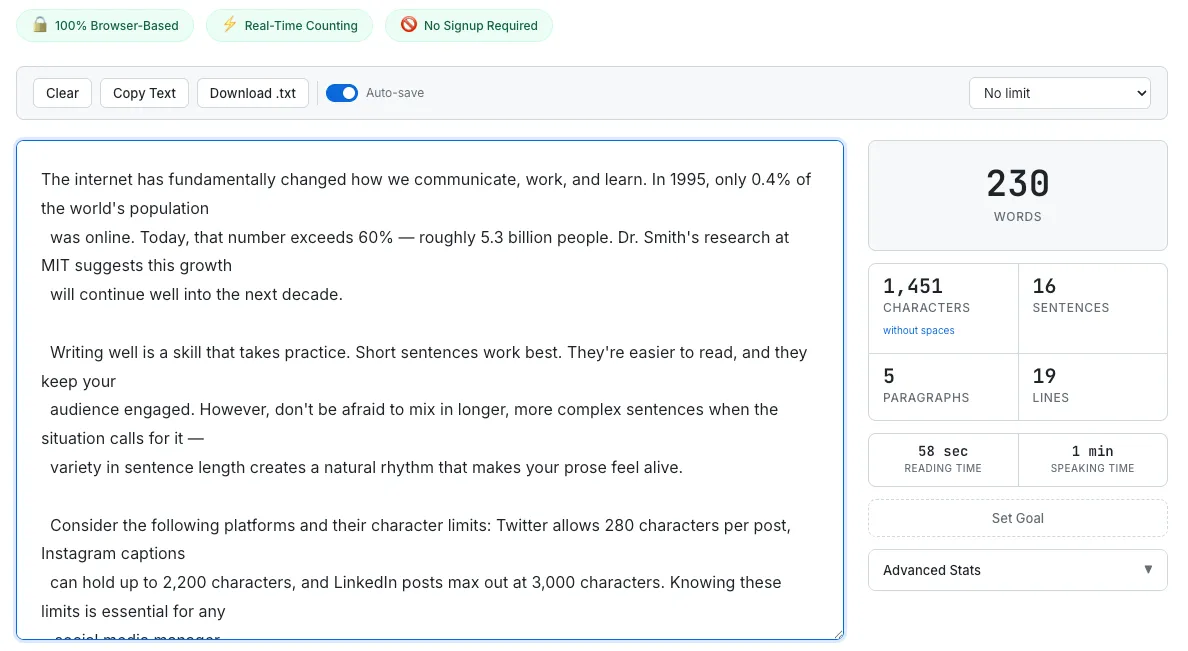
The side-by-side layout lets you see all your stats while you write — no scrolling needed.
The Side-by-Side Layout — The Most Important Design Decision
The single most important design decision in this tool was the layout. Placing the text area and the stats panel side by side — this one choice is what separates it from every other word counter out there.
I used CSS Flexbox with flex: 2 for the text area (roughly 66% width) and flex: 1 for the stats panel (roughly 33% width). The stats panel uses position: sticky so it stays pinned in place even when you scroll through a long document. This means that even when you're editing a 5,000-word article, the word count is always in your peripheral vision.
Mobile required a different approach. The screen is too narrow for side-by-side, so I created a sticky mini bar instead. It's a thin bar fixed to the top of the viewport that shows just two numbers: "230 words | 1,451 chars." The full stats panel slides below the text area in a collapsible section. This way, even on a phone, the two most important metrics are always visible.
I used only two responsive breakpoints to keep things simple:
- Below 1024px: the stats panel gets narrower but stays side-by-side
- Below 768px: switches to a stacked layout with the sticky mini bar
Readability Analysis and Web Workers — Balancing Features and Performance
Basic word counting is simple. text.split(/\s+/).length — one line of code and you're done. But readability analysis using the Flesch Reading Ease formula and keyword density analysis are entirely different problems.
The Flesch formula requires syllable counts. Counting syllables programmatically in English is actually a surprisingly hard problem — English pronunciation rules are notoriously irregular. "Enough" has 2 syllables, "through" has 1, and "beautiful" has 3. There's no consistent pattern. The perfect solution would be to load a pronunciation dictionary like the CMU Pronouncing Dictionary (about 5MB), but forcing users to download 5MB for a word counter felt absurd.
Instead, I built a heuristic-based syllable counter. It counts vowel groups, strips silent e's, and handles "le" suffixes — about 50 lines of code. Accuracy is roughly 85 to 90 percent. Not perfect, but the Flesch formula's coefficients absorb small errors, so the final readability score is reliable enough for practical use.
The bigger challenge was performance. Running syllable counting, keyword density analysis, and readability scoring on every single keystroke for a 10,000-word text would freeze the UI completely. I solved this with a two-stage pipeline:
Stage 1 — Main thread (instant response): Word count, character count, sentence count, paragraph count. These are simple regex splits that complete in under 5 milliseconds even on 50,000-word texts. They run after a 150-millisecond debounce.
Stage 2 — Web Worker (background): Syllable counting, Flesch scores, keyword density. These are heavy computations that run in a separate thread after a 500-millisecond debounce. The main thread is never blocked, so the UI stays perfectly responsive.
The Web Worker is created from an inline Blob URL rather than an external JavaScript file. This follows SudoTool's pattern of having every tool work as a single HTML file with no external dependencies:
var blob = new Blob([workerCode], { type: 'application/javascript' });
var worker = new Worker(URL.createObjectURL(blob));
Thanks to this approach, pasting 100,000 words completes basic counts within 100 milliseconds and full analysis within 500 milliseconds. The UI never freezes.
CJK Support, Abbreviations, and the Illusion of "Accurate" Word Counting
The most common complaint I heard while building this tool was "why is my word count different from another tool?" This is an unavoidable problem — there is no universal standard for what counts as a word.
Is "well-known" one word or two? What about "don't"? Is "3.14" a word? Is "user@email.com"? Different tools count differently. I chose the most intuitive approach: any token separated by whitespace counts as one word. This matches what most word processors (Microsoft Word, Google Docs) do, which minimizes confusion for users who compare counts across tools.
Chinese, Japanese, and Korean (CJK) text is an entirely different challenge. These languages don't use spaces between words. Most English-centric word counters either count an entire CJK sentence as one word or fail to handle it at all.
I chose to count each CJK character as one word. The tool detects CJK characters using Unicode ranges and counts each one independently. When text mixes Latin and CJK characters, both counting methods are applied automatically. It's not a perfect linguistic definition of "word," but it gives users a meaningful and consistent count.
Sentence counting had its own headache: abbreviations. How many sentences are in "Dr. Smith went home."? If you treat the period after "Dr" as a sentence boundary, you get two sentences instead of one. I built an abbreviation list — Mr., Mrs., Dr., U.S., etc., about 25 entries — and the counter skips periods that follow known abbreviations. It's not foolproof, but for typical English prose, it's accurate enough that you'd never notice the edge cases.
The Share Card — Why a PNG Download Matters
The last feature I added was the Share Stats card. When you're done writing, you can download your statistics as a clean image — a card showing "2,450 words, ~10 min read, Grade 8 readability" with the SudoTool branding.
The reason for this feature is simple: shareability. When a blogger or writer posts "wrote 2,000 words today!" on social media, having a polished image card makes the post more eye-catching and more likely to be shared. And since "sudotool.com" appears at the bottom of every card, it's organic branding that costs nothing.
The PNG is generated using the Canvas API in pure JavaScript. No external libraries like html2canvas — I draw shapes and text directly onto a <canvas> element and export it with toDataURL(). This keeps everything as a single HTML file with zero external dependencies, consistent with every other tool on SudoTool.
There's also a "Copy as Markdown" option that puts a clean stats table on your clipboard. Useful for pasting into reports, documents, or README files. A small feature, but one that writers and content managers actually use.
If you want to dive deeper into the data behind word counting — reading speeds, page conversions, social media limits, and readability benchmarks — check out The Complete Guide to Word Count. And for a look at similar design decisions in another tool, see Why Strong Passwords Matter, which covers the same philosophy of giving users real information instead of vague labels.
The Takeaway
In the end, building a good tool isn't about creating something that doesn't exist. It's about doing something that already exists properly. The word counter category has been around for decades, but an ad-free interface, a side-by-side layout where stats are always visible, 100% browser-based privacy, and social media previews — nobody had put all of these into a single tool.
I won't claim this tool is revolutionary. But if it makes the experience of counting words even slightly better, that's enough.