Why I Built a World Clock and Meeting Planner When Phone Apps Already Exist
Your phone can tell you what time it is in London. It can't tell you when London, Seoul, and New York are all awake at the same time.
Every now and then I need to schedule a meeting with teammates in other time zones. Sometimes it's a weekly sync with a colleague in London. Other times it's a call with a client in New York. And occasionally I'm the one traveling — sitting in a different city, trying to find a time that works for the team back in Seoul. Each time, the same question comes up: what time is it over there, and when can we actually meet? That's the kind of problem a world clock and meeting planner should solve in seconds, but none of the ones I tried actually did.
Why a World Clock on Your Phone Isn't Enough for Meeting Planning
The obvious tool is the world clock on your phone. Both iOS and Android let you add cities and see their current time. That part works fine. The problem is that knowing the current time in three cities doesn't tell you when all three overlap during working hours.
Say it's 3 PM in Seoul. You glance at your phone — London is 6 AM, New York is 1 AM. Great, now you know the current time. But the question you actually need answered is: when today are all three cities between 9 AM and 6 PM? To figure that out, you have to build a mental timeline, slide each city's working hours along it, and find where they overlap. It's basic arithmetic, but doing it for three or more cities, factoring in half-hour offsets like India's UTC+5:30 or daylight saving shifts, is genuinely tedious.
Google can tell you the time difference between two cities instantly. But try comparing three or more at once — it doesn't support that. You end up searching pairs separately and combining the results in your head. Calendar apps like Google Calendar and Outlook can display a second time zone, but they're designed for viewing events that already exist, not for finding the right time to create one. And they only work well when everyone is on the same platform.
What I actually wanted was simple: add a few cities, see a 24-hour timeline for each, and instantly see where everyone's working hours overlap. That's it. No account, no setup, no coordination with anyone else. Just open a page and get the answer.
What the Tool Actually Does
The World Clock & Meeting Planner has two parts that work together.
The first is the world clock. When you open the page, your local time zone is detected automatically and shown as the first card. Type a city name into the search bar and pick from over 80 major cities worldwide — a new card appears instantly with the live time, date, UTC offset from your location, and a colored status dot. Green means the city is in typical working hours (9 AM to 6 PM). Yellow means early morning or evening — possible for a meeting, but not ideal. Red means it's nighttime. At a glance, you know whether it's even reasonable to message someone right now.
You can click any city's name and rename it. Change "London" to "Design Team" or "New York" to "Client — John" so you can see at a glance whose time zone you're looking at, not just which city. Everything — cities, aliases, the 12h/24h preference — saves automatically to your browser. Come back tomorrow and it's all still there.
The second part is the Meeting Planner. It appears automatically once you've added at least two cities. A 24-hour grid shows each city as a row, with every hour color-coded: green for working hours, yellow for early/late, red for nighttime. Where every city is green at the same time, the cells get a bold green border, and a banner appears below the grid: "Best meeting time: 09:00 – 13:00 (Seoul time)."
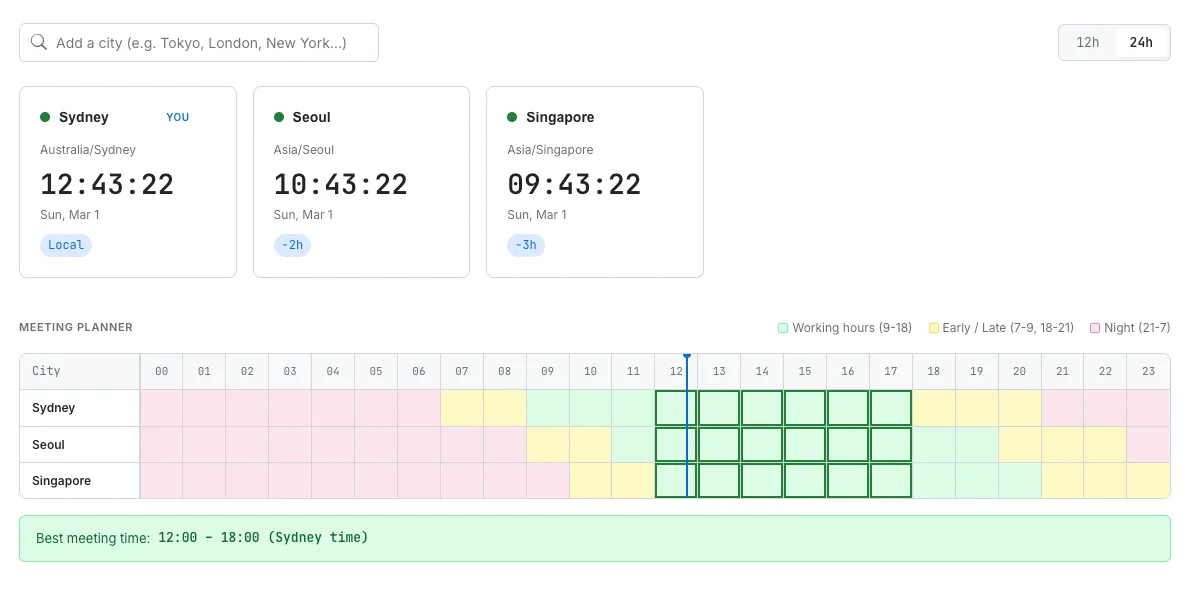
Three cities added with the Meeting Planner grid showing overlapping working hours highlighted in green.
Hover over any column in the grid and a tooltip shows the exact time in every city for that slot. A blue vertical line marks the current moment, so you can immediately see where "now" falls relative to the overlap window. It turns a mental math exercise into something you can answer by looking at colors on a screen.
How It's Built — No API, No Server
The most unusual thing about this tool is that it makes zero external API calls. None. The entire thing runs on what the browser already knows.
Time zone calculations use the built-in Intl.DateTimeFormat API, which is available in every modern browser. It uses the IANA time zone database under the hood, which means it handles daylight saving transitions, half-hour offsets (India's UTC+5:30, Nepal's UTC+5:45), and all the other edge cases automatically. There's no server to ask. The browser already has the data.
City search works the same way — offline. Over 80 major cities and their IANA time zones are stored as a JavaScript array directly in the page. Typing into the search bar filters this list instantly with no network request. The cities cover every inhabited continent: Seoul, Tokyo, London, New York, São Paulo, Sydney, Cairo, Nairobi, Reykjavik, and dozens more.
The practical benefit of this architecture is straightforward. After the page loads, it works offline. There is no server cost — nothing to host, nothing to maintain, nothing to pay for. And it's fast. Every interaction is instantaneous because there is nothing to wait for. No loading spinners, no API latency, no rate limits. The time calculations, the search, the meeting planner grid — all of it happens in the browser in milliseconds.
User preferences — which cities you've added, what you've renamed them to, whether you prefer 12-hour or 24-hour format — are stored in localStorage. No account, no login, no data leaving your device. It's the same approach used across every tool on SudoTool. The Running Weather Scheduler saves your city and run time locally. The Travel Currency Converter stores your currency pair and spending list the same way. Privacy isn't a policy — it's how the tools are built.
How the "Best Meeting Time" Calculation Works
The meeting planner logic is simple by design. It takes the first city in your list as the reference and checks all 24 hour-slots. For each slot, it converts that hour to every other city's local time and checks whether all of them fall within the 9 AM – 6 PM window. If they do, that slot is marked as optimal.
The conversion handles fractional time zone offsets correctly. India is UTC+5:30, which means when it's exactly 9:00 AM in London, it's 2:30 PM in Mumbai — not 2:00 or 3:00. The tool calculates offsets in minutes, not hours, so these half-hour and 45-minute boundaries are never rounded or ignored. The result is displayed as a contiguous range — "09:00 – 13:00" — rather than a list of individual hours, which is how you'd actually think about it when booking a meeting.
What's Still Missing
The city list is currently around 80 entries. That covers most major cities people would search for in a work context, but it's not exhaustive. A smaller city or a less common time zone might not be there. I'm adding cities based on usage patterns, and at some point I'd like to add a fallback that lets you pick any IANA time zone directly, even if the city isn't in the preset list.
The other limitation is that the tool only shows today's time zones. If you're planning a meeting for next week and daylight saving time changes between now and then, the overlap window might shift by an hour. For most use cases — checking times right now, or within the next few days — this doesn't matter. But for scheduling something weeks ahead, a date picker that adjusts the grid would be useful. That's something I want to add eventually.
Try It
The tool is free, works on desktop and mobile, and requires no sign-up. Add your cities, rename them to match your team, and find the overlap in seconds. If you work across time zones regularly, it should save you a few minutes every time you need to schedule a call.
If your team spans more than two time zones, the meeting planner grid is where the real value is. Instead of mentally juggling offsets, you just look for green. The answer is right there on the screen.