Why I Built a Percentage Calculator When Google Already Answers "20% of 150"
The problem wasn't calculating percentages. It was that real-world percentage problems don't look like "X% of Y."
"20% of 150" — type it into Google and you get an answer in half a second. 30. A clean, accurate percentage calculation. What more could you want?
The problem is that real-life percentage situations almost never arrive in that form. You're at a store staring at a sign that says "30% off + extra 20% off" and thinking, "so that's 50% off, right?" (It's not — it's 44%.) You're at a restaurant looking at a $47.50 bill and trying to figure out what 18% tip looks like. You just got 42 out of 50 on an exam and want to know whether that's a B or a C. None of these are things you can type into Google as-is.
Google solves abstract math. But percentage problems in real life always come with context attached.
The Problem With Abstract Percentage Calculators
It's not just Google. The dedicated percentage calculator sites — Calculator.net, Omnicalculator, and the rest — all share the same interface. "What is X% of Y?" "X is what percent of Y?" Abstract formulas that assume you've already translated your real-world problem into mathematical notation.
That translation step is the actual problem. Take a concrete example: an item originally priced at $89.99 has a 30% discount, and you have a coupon for an additional 20% off. What's the final price?
To solve this with an abstract calculator, you need to: calculate 30% of $89.99, subtract it, then calculate 20% of the reduced price, then subtract again. Two separate calculations, an intermediate result to remember, and easy opportunities for mistakes along the way. And the most common mistake — assuming 30% + 20% = 50% off — isn't something any abstract calculator will warn you about.
Tip calculations are another pain point. $47.50 times 18% — Google gives you $8.55 in one search. But you want to compare 15%, 18%, 20%, and 25% before deciding. That's four separate searches. At a restaurant, on your phone, that's not realistic.
Then there's the markup versus margin confusion — one of the most common mistakes in business. A product costs $15 and sells for $25. The markup is 66.7% (profit relative to cost). The margin is 40% (profit relative to selling price). Same two numbers, completely different percentages. Set prices based on the wrong one and you actually lose money. Yet most calculator tools only compute one or the other.
Six Modes, Not One Formula
I flipped the approach entirely. Instead of one abstract "X% of Y" interface, I built six modes — one for each real-world scenario where people actually need percentages.
Shopping is the default tab. It's the default because shopping discounts are the number one reason people search for percentage calculations. Enter the original price and discount percentage, and you get the savings and final price instantly. The "+ Add another discount" button supports stacked discounts, and a reverse toggle lets you work backward from a sale price to find the original.
Tip is the mode with the highest mobile usage potential. Enter the bill amount and see four tip percentages — 15%, 18%, 20%, and 25% — displayed simultaneously in a card grid. Tap any card to copy the total to your clipboard. A custom percentage input is also available for those who tip differently.
Grade is for students and parents. Enter your score and the total points, and you get the percentage, a color-coded progress bar, and the letter grade (A through F) — all at once.
Change handles salary raises, investment returns, and price changes. Enter an original value and a new value, and you see the percentage change with a green arrow for increases and a red arrow for decreases. A reverse mode lets you apply a percentage change to a value instead.
Margin is the most differentiated mode. Enter the cost price and selling price, and you see markup and margin displayed side by side. Seeing both numbers next to each other — derived from the same inputs — makes the difference between them immediately obvious. A "What's the difference?" toggle expands an educational explanation of why markup and margin are not the same thing.
General covers everything else — the four classic percentage formulas: "What is X% of Y?", "X is what % of Y?", "X is Y% of what?", and "% Difference between X and Y." This is the Google fallback for anything that doesn't fit the other five modes.
The Stacked Discount Trap
The feature I'm most satisfied with is the stacked discount calculation and the warning message that comes with it.
30% off plus an additional 20% off. Intuitively, it feels like 50% off. But it's actually 44%. The second discount applies to the already-reduced price, not the original.
Walk through the math with a $100 item: 30% off brings it to $70. Then 20% off that $70 is $14, bringing it to $56. From $100 to $56 — the actual total discount is 44%. If you expected 50% off, you're paying $6 more than you thought.
The tool shows this step by step. Discount 1 took off this much, leaving this intermediate price. Discount 2 took off this much from that intermediate price, leaving the final price. And at the bottom, a warning appears: "Common mistake: 30% + 20% = 50% off? No! It's actually 44% off. Each discount applies to the already-reduced price."
This isn't just showing a calculation result — it's teaching the user something they might not have known. That kind of contextual insight doesn't exist in abstract calculators.
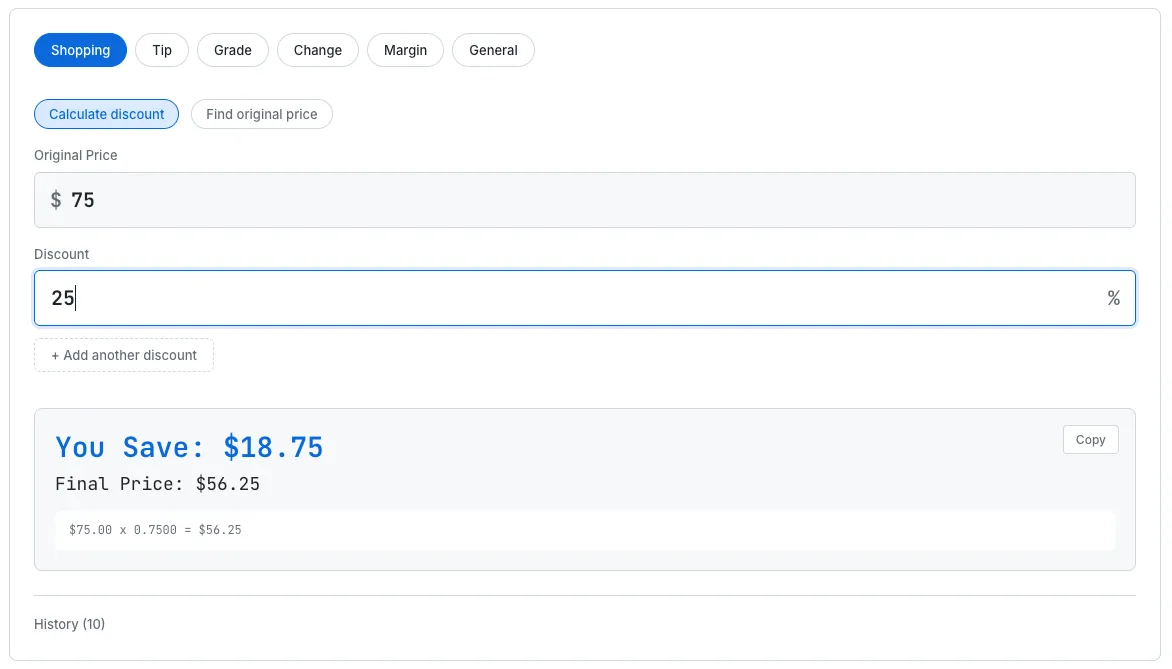
Shopping mode: enter the original price and discount, see the savings and final price instantly.
The Small Things That Matter
There are details that don't stand out visually but define the experience.
No "Calculate" button. Every calculation happens in real time as you type. A 150-millisecond debounce prevents unnecessary computation during active typing, but the moment you pause, the result appears. Pressing a submit button on a calculator is wasted time.
Automatic input cleanup. Paste "$89.99" into an input field and the dollar sign and commas are stripped automatically — only the number is parsed. Paste "30%" and the same thing happens. You don't need to format your input.
History. The last 10 calculations are saved in localStorage. "What did I calculate earlier?" — open History and it's there. It persists across page reloads and browser sessions.
Copy and toast. Every mode has a Copy button on the result. Click it and the value goes to your clipboard with a toast notification at the bottom. In Tip mode, you can tap any tip card directly to copy the total amount.
Escape to clear. When an input field is focused, pressing Escape clears it and resets the result. Starting a new calculation is one keystroke instead of selecting all and deleting.
Tab memory. The last active tab is saved to localStorage. If you primarily use Tip mode, the tool opens to Tip — not Shopping — the next time you visit.
What I'd Improve
There are features I haven't built yet but want to.
Tax-inclusive pricing. In Shopping mode, adding a sales tax percentage after the discount would show the actual amount you pay at the register. In the US, where sales tax varies by state, the post-discount pre-tax price isn't what you actually pay. Showing the true final number would make the tool more realistic.
Split bill. A "Split between N people" option in Tip mode. Dividing the tip-included total by the number of diners and showing the per-person amount is the actual thing people do at restaurants. Right now you'd need to do that division separately.
Shareable URLs. Encoding the current state in the URL — something like ?mode=shopping&price=89.99&discount=30 — would let you share a specific calculation as a link. "Check this price breakdown" as a single click. It's not implemented yet, but it would be a natural addition.
If you're curious about the math behind percentages — why 30% + 20% isn't 50%, the real difference between markup and margin, or what "percentage points" actually means — check out our complete guide to understanding percentages for a deeper dive. For another story about building a numbers tool, the Investment Growth Simulator dev log tackles compound interest from a similar "Google already does this, but not quite" angle.
The Takeaway
Percentage calculators are one of the most basic tools on the internet. Google answers the math directly. Calculator apps exist on every phone. But "20% of 150" and "I have two stacked coupons, what's the actual final price?" are the same math expressed as entirely different problems.
This tool doesn't solve abstract math. It takes real situations — shopping, dining, school, salary, business — and gives real answers. The inputs match what you actually know, and the outputs match what you actually need.
If it makes even one percentage calculation less annoying, that's enough.