Building an EXIF Viewer That Puts Privacy First
Every photo you take carries invisible data — your camera model, your GPS coordinates, the exact second you pressed the shutter. I built an EXIF metadata viewer that reveals all of it, maps your location, and strips everything clean — without your photo ever leaving your browser.
Why I Built an EXIF Metadata Viewer
A few months ago I sent a photo to a friend and they replied with my exact street address. Not because I told them where I was — because the JPEG I sent had GPS coordinates embedded in it, accurate to within three meters. I knew EXIF data existed in theory. I had never felt it as a privacy threat until someone used it against me in a group chat.
That moment sent me down a rabbit hole. I opened one of my recent photos in a hex editor and found over forty metadata fields: my iPhone model, the lens aperture, the ISO value, the exact timestamp down to the second, the software version that processed the image, and a pair of latitude/longitude coordinates that pinpointed the coffee shop I was sitting in. All of this travels with the file when you text it, email it, or upload it to a forum that does not strip metadata on ingest.
I searched for “EXIF viewer” and found dozens of tools. But the first three I tried all required me to upload my photo to their server. The irony was suffocating: a tool that claims to help you understand your photo’s privacy risks by asking you to send your photo — with all its metadata — to a stranger’s server. I wanted to build an EXIF metadata viewer that does everything in the browser. No upload. No server. No trust required.
The Competition Gap
I tested every major EXIF viewer I could find before writing a single line of code. The landscape had a consistent problem: nearly every tool treated privacy as an afterthought, even though privacy is the entire reason most people look at EXIF data in the first place.
ExifData.com processes images client-side, which is the right approach. The results are thorough — you get a clean table of every tag. But it dumps all tags in a flat list without grouping, context, or privacy risk assessment. You see “ExposureProgram: 2” and have no idea what that means. The data is there, but the understanding is missing.
Pic2Map focuses on the GPS angle, plotting your photo’s location on a map. It is visually appealing and the map integration is well-done. But again, server upload required. And it only emphasizes location data — it does not help you understand what the other thirty-five metadata fields mean or why they matter.
Exif.tools uses the powerful ExifTool engine on the server side, which gives it the most comprehensive format support of any online tool. But that means your photo gets uploaded to their server for processing — the same privacy tradeoff as Pic2Map. And the output is a raw tag list without explanations or privacy context.
The pattern I kept seeing: tools that are technically accurate but educationally empty, or tools that offer comprehensive extraction but require server uploads. Nobody was combining client-side processing, human-readable explanations, privacy risk assessment, GPS mapping, and metadata stripping into one polished tool. That was the gap.
Choosing exifr — The Fastest Browser-Based EXIF Parser
The library decision mattered more than usual for this tool. SudoTool runs entirely in the browser with no build tools, no npm, no webpack. I needed a JavaScript library that could parse EXIF data from a File object directly in the browser, loaded from a CDN.
I evaluated three options. exif-js is the oldest and most widely referenced library. Its GitHub repository dates back to 2009 and it appears in every Stack Overflow answer about browser-side EXIF parsing. But the last npm release was in 2017, it does not support modern formats like HEIC and WebP, and its parsing speed is slow on large files because it reads the entire file into memory before extracting tags. For a 12MB iPhone photo, that means loading 12MB into an ArrayBuffer just to read 2KB of metadata.
exif-parser is faster than exif-js because it only reads the EXIF segment rather than the entire file. But it only supports JPEG. No PNG, no WebP, no HEIC. In 2026, that is a disqualifying limitation. iPhones shoot HEIC by default, and WebP is the dominant format on the web.
I chose exifr. Its mini build is 29KB minified (8KB gzipped) and the full build is 73KB minified (22KB gzipped) — either way, lightweight enough to load instantly from a CDN. It supports JPEG, PNG, WebP, HEIC, TIFF, and AVIF. It uses a chunked reading strategy — instead of loading the entire file, it reads only the first few kilobytes where the EXIF segment lives, which makes it significantly faster than exif-js on large files. And critically for GPS handling, exifr has built-in DMS-to-DD conversion. When a photo stores GPS coordinates in degrees-minutes-seconds format (like 37° 46’ 30.1” N), exifr automatically converts them to decimal degrees (37.7750) that I can pass directly to a mapping library. No manual math. No edge cases around hemisphere signs or minute-to-decimal conversion. The library just gives me two floats I can plot on a map.
Loading exifr from esm.sh as an ES module follows the same pattern I used for the AI Token Counter, where I loaded OpenAI’s tokenizer from a CDN. No build step, no node_modules, just a dynamic import() that fires when the user drops a file.
Metadata Categories — Making Raw Tags Human-Readable
A raw EXIF dump is useless to most people. When exifr returns an object with forty-plus fields — Make, Model, FNumber, ExposureTime, ISO, FocalLength, GPSLatitude, GPSLongitude, DateTimeOriginal, Software, LensModel, ColorSpace, WhiteBalance, and dozens more — showing them all in a flat list communicates nothing. The user sees data but gains no understanding.
I grouped the metadata into six categories, each with a clear purpose:
- Camera Info — Make, Model, LensModel, Software. This tells you what device took the photo and what software processed it. “Apple iPhone 15 Pro” or “Canon EOS R5 with RF 50mm f/1.2L.”
- Exposure Settings — FNumber, ExposureTime, ISO, FocalLength, ExposureProgram, MeteringMode. This is what photographers actually care about. But raw numbers like
FNumber: 2.8need context, so I add inline explanations: “f/2.8 — wide aperture, shallow depth of field” or “1/1000s — fast shutter, freezes motion.” - GPS Location — Latitude, Longitude, Altitude. If these exist, the photo knows where you were. This is the category that triggers the privacy warning.
- Date & Time — DateTimeOriginal, CreateDate, ModifyDate. When the photo was taken, when it was last edited. Timestamps can reveal daily routines and travel patterns.
- Image Details — ImageWidth, ImageHeight, ColorSpace, Orientation, BitsPerSample. Technical properties of the image file itself.
- Software & Processing — Software, HostComputer, ProfileDescription. What app or program last touched the file. “Adobe Photoshop 25.6” or “GIMP 2.10.38” tells you the photo was edited.
The inline explanations were inspired by how the AI Token Counter handles model pricing — raw numbers become meaningful only when you add context. “ISO 6400” means nothing to a non-photographer. “ISO 6400 — high sensitivity, likely shot in low light” tells a story. Each exposure field gets a brief, plain-English annotation that helps the user understand not just what the value is, but what it implies about the photo.
The GPS Map — Leaflet and OpenStreetMap
When a photo contains GPS coordinates, showing the numbers alone is not enough. “37.7750, -122.4183” is technically precise but emotionally empty. Plotting that point on a map and seeing a pin on a specific street corner in San Francisco — that creates the visceral reaction that changes behavior. You suddenly realize your vacation photo knows exactly which restaurant you were sitting in.
I needed a mapping library that was free, required no API key, and worked entirely client-side. Google Maps requires an API key and charges after a certain number of loads. Mapbox is beautiful but also requires an API key and has usage limits. The choice was straightforward: Leaflet with OpenStreetMap tiles.
Leaflet is roughly 42KB gzipped. It loads fast, has a clean API, and its tile layer system works with any tile provider. OpenStreetMap tiles are free to use with proper attribution (a small “OpenStreetMap” link in the corner of the map). No API key. No billing dashboard. No usage caps that would break the tool if it suddenly got traffic.
The map only appears when GPS data exists. If the photo has no location tags, the GPS section shows a simple message: “No GPS data found in this image.” No empty map container taking up space, no placeholder asking the user to imagine where the pin would go. The map earns its screen space by having something to show. When GPS coordinates are present, the map renders with the pin centered, zoomed to street level (zoom 15), and a popup showing the decimal coordinates. The user sees exactly where the photo was taken, on a real map, in under a second.
Leaflet’s CSS and JavaScript are loaded when the page loads, since GPS data is common enough that most users will encounter it. The map container itself is hidden until GPS coordinates are found — it only renders when there is something to show, so users without GPS-tagged photos never see an empty map.
Stripping Metadata With the Canvas API
Viewing metadata is useful. Removing it is essential. The most common question after “what data is in my photo?” is “how do I get rid of it?”
The approach I used requires no additional library. The browser’s native Canvas API does all the work. The process is simple in concept: load the image into an <img> element, draw it onto a <canvas>, and export the canvas as a new image file. The canvas only contains pixel data — it has no concept of EXIF tags, GPS coordinates, camera information, or any other metadata. When you call canvas.toDataURL(’image/jpeg’, 0.92) or canvas.toBlob(), the resulting file is a clean image with zero metadata.
The implementation works like this: when the user clicks “Strip Metadata,” the tool creates an offscreen canvas with the same dimensions as the original image, draws the image onto it using ctx.drawImage(), and then generates a new JPEG blob from the canvas. The new file is offered as a download with “-clean” appended to the filename. The original file is never modified.
The before-and-after file size difference can be noticeable. The Canvas API approach re-encodes the image at a quality setting of 0.95, which means the output file size depends on both metadata removal and JPEG compression. Metadata itself typically accounts for 20–80KB in a standard smartphone photo (the EXIF APP1 segment is capped at ~64KB by the JPEG specification, though XMP and ICC profiles can add more). The larger file size reduction you see is primarily from the re-encoding, not the metadata removal alone. The tool shows both file sizes so the user can see the total difference.
This Canvas API technique is the same approach I would use in the Image Compressor — draw to canvas, export at a target quality level. The canvas is a remarkably versatile tool for browser-based image manipulation, and the fact that it inherently strips metadata is a useful side effect for a privacy-focused tool.
The Privacy Alert — Making Risk Visible
The most important design decision in the entire tool was the privacy warning system. Technical accuracy is not enough. People need to feel the risk, not just read about it.
When the tool detects GPS coordinates in a photo, a red alert banner appears at the top of the results. Not a subtle footnote. Not a small icon. A full-width, red-backgrounded warning with bold text: “This photo contains GPS coordinates that reveal where it was taken.” Below the warning, the actual coordinates are shown alongside the map. The visual hierarchy is deliberate — the danger signal comes first, the details come second.
For photos that contain a timestamp but no GPS data, the alert is orange: “This photo contains date and time information that could reveal when it was taken.” Less severe than a location leak, but still worth knowing about. Timestamps combined with social media posts can reveal daily routines, travel schedules, and work patterns.
Photos with no location and no timestamp get a green indicator: “No sensitive metadata detected.” This positive reinforcement matters. If the tool only warns about problems and says nothing when things are fine, users never get the satisfaction of knowing their privacy settings are working.
This grading approach was directly inspired by the Browser Privacy Checker, which uses a letter-grade system with color-coded categories to communicate privacy risk at a glance. The lesson I learned from that tool applies here: people do not read paragraphs of risk analysis. They respond to colors. Red means stop and fix this. Orange means pay attention. Green means you are safe. The three-second emotional reaction does more to change behavior than a thousand words of explanation.
I also added a small educational note beneath the warning explaining why GPS data in photos matters. Not a lecture — two sentences. “Photos shared on social media, forums, or messaging apps may retain this data. Anyone who downloads the image can extract your exact location.” Just enough context to connect the abstract concept of “metadata” to the concrete consequence of “someone knowing where you live.”
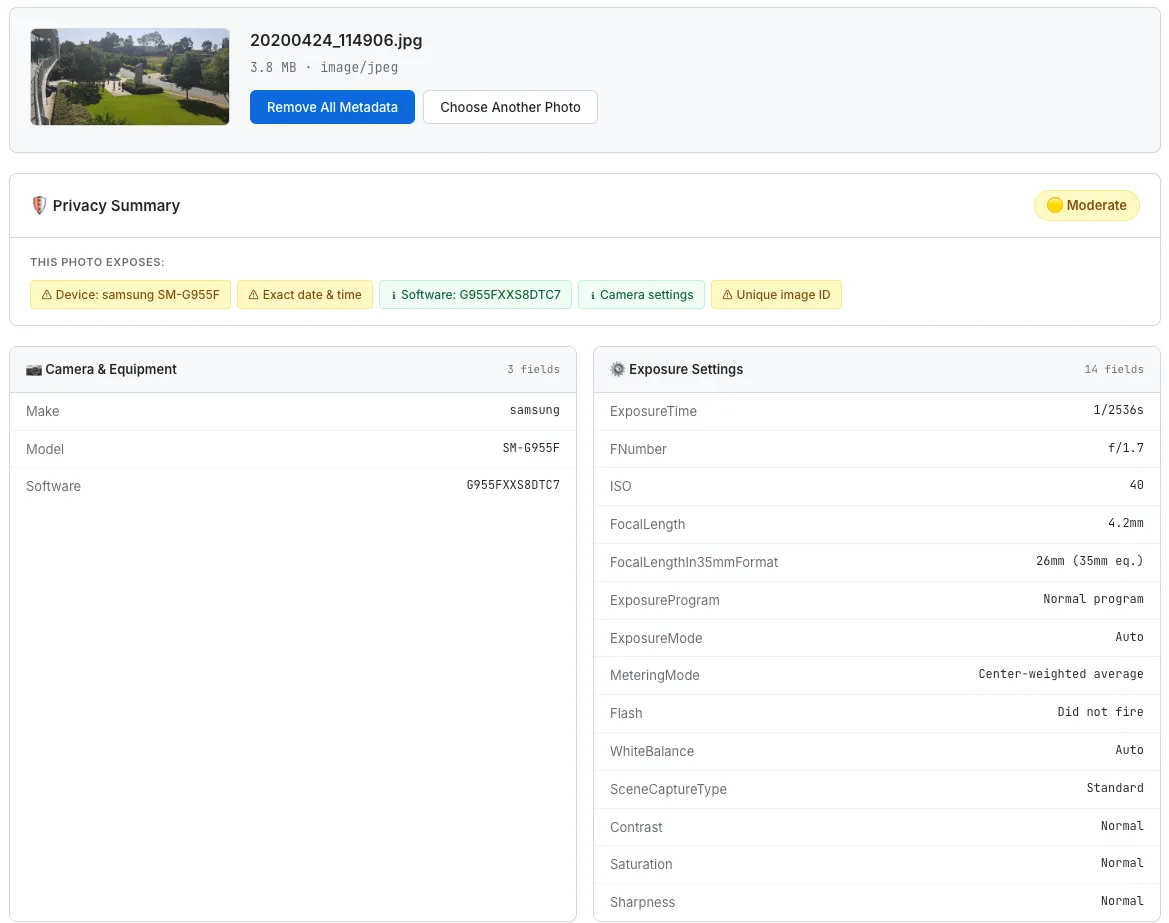
The EXIF Metadata Viewer showing a GPS privacy warning, an interactive map with the photo’s location, and grouped camera metadata.
What I Would Build Next
The current tool handles one photo at a time. That is fine for checking a single image before sharing it, but it falls short for anyone who wants to clean an entire folder of vacation photos before uploading them to a shared album.
- Batch processing — drag-and-drop multiple files and see a summary table: which photos have GPS, which have timestamps, which are already clean. One button to strip metadata from all of them and download a zip file. The
FileAPI supports multiple file selection natively, so the browser-side implementation is straightforward. - URL input — paste an image URL and fetch the photo’s metadata without downloading it manually. This is useful for checking whether a photo on a website has been properly stripped. The challenge is CORS — most image CDNs do not set
Access-Control-Allow-Originheaders, so a directfetch()will fail. A proxy or a CORS-friendly approach would be needed, which conflicts with the no-server philosophy. Still thinking about this one. - Privacy score — a numerical score from 0 to 100 reflecting how much sensitive data the photo contains. GPS coordinates would be the heaviest penalty, followed by precise timestamps, device identifiers, and editing software trails. The scoring model from the Browser Privacy Checker would serve as a template — weighted categories, color-coded results, instant comprehension.
- Side-by-side view — show the original photo next to the stripped version, with file sizes and metadata counts displayed beneath each. This makes the before-and-after tangible. “Original: 4.2MB, 43 metadata fields. Clean: 3.1MB, 0 metadata fields.” Numbers that prove the tool did something.
The Takeaway
An EXIF viewer is, at its core, a tool that reads bytes from a file and displays them in a table. The technical complexity is modest. Exifr does the parsing. Leaflet does the mapping. The Canvas API does the stripping. The code that glues them together is a few hundred lines of vanilla JavaScript.
But the value of the tool is not in the parsing. It is in the revelation. Most people have no idea that their photos carry GPS coordinates. They do not know that a JPEG sent in a group chat can tell the recipient exactly where the photo was taken, what phone was used, and when the shutter button was pressed. The data is invisible — it does not appear in the image itself, it does not show up in file previews, it does not announce its presence in any way. It just quietly travels with the file, waiting for anyone who knows how to read it.
Making invisible data visible changes behavior. That is the lesson I keep returning to with every privacy tool I build. The Browser Privacy Checker showed people what trackers see when they visit a website. This tool shows people what strangers see when they receive a photo. In both cases, the tool does not add any new information to the world. The data was always there. The tool just makes it impossible to ignore.
The most powerful moment in this tool is when someone drops in a photo they were about to post on social media and sees a red GPS warning with a map pin on their home address. That is not a feature. That is an intervention. And it costs nothing — no server, no account, no upload. Just a browser tab and a file they were going to share anyway.