Building a Browser Privacy Checker That Shows What Trackers See
Most fingerprinting tools dump raw data at you. I built one that runs 20+ checks, translates them into a letter grade with actionable recommendations, and generates a shareable result card — all without sending a single byte to any server.
Why I Built a Browser Privacy Checker
It started with a routine curiosity check. I opened Cover Your Tracks, the EFF's browser fingerprinting tool, and ran the test. The results told me my browser had a "nearly unique" fingerprint. Then I went to BrowserLeaks, which showed me a wall of technical data: my canvas hash, my WebGL renderer string, my AudioContext fingerprint, my screen resolution, my timezone, my installed fonts. Then AmIUnique, which told me my browser configuration was shared by only 0.03% of their database. Then CreepJS, which gave me a trust score and a detailed breakdown of every API my browser exposes.
Each of these tools was informative. None of them were helpful. They told me what data my browser was leaking, but they did not tell me what to do about it. They showed me raw hashes and percentages, but they did not tell me whether my privacy posture was good, bad, or catastrophic. They gave me data dumps aimed at developers and security researchers, not at the average person who just wants to know: "Am I being tracked, and what can I do about it?"
That was the gap. Not another fingerprinting tool that shows you technical data — there are plenty of those. What was missing was a tool that translates all of that technical complexity into something anyone can understand. A single letter grade. A set of personalized recommendations. A shareable result card that lets you compare your privacy posture with friends and colleagues. I wanted to build the tool I wished existed when I first ran those tests: a browser privacy checker that tells you what trackers see, scores how exposed you are, and tells you exactly what to fix.
The Competition Gap
Before writing a single line of code, I spent a week analyzing every browser privacy and fingerprinting tool I could find. I tested over seven tools across multiple browsers and operating systems, documenting what each one did well and where each one fell short. The landscape was instructive.
Cover Your Tracks by the Electronic Frontier Foundation is the gold standard. It has been around for years, has enormous name recognition, and does a thorough job of testing your browser's fingerprint uniqueness and tracking protection. But it feels academic. The results page is dense, text-heavy, and assumes you already understand what canvas fingerprinting is and why it matters. For a privacy researcher, it is excellent. For someone's parents trying to figure out if their browser is safe, it is overwhelming.
BrowserLeaks takes a different approach: it shows you the raw data that every web API exposes. Your canvas rendering, your WebGL parameters, your font list, your IP address details. The information is comprehensive and accurate. But there is no scoring, no interpretation, no recommendations. It is the equivalent of a doctor handing you your blood test results without telling you if anything is wrong. You see the numbers but have no idea what they mean for your privacy.
AmIUnique gives you a uniqueness percentage — "your browser fingerprint is unique among the X browsers we have tested." This is useful as a single data point, but it does not tell you which specific attributes are making you unique or what you can change. CreepJS is technically the most sophisticated tool in the space, performing deep trust analysis and detecting spoofing attempts, but it is built for developers and security researchers. Its output reads like a debug log.
I tested four more tools beyond these: Device Info, Webkay, Privacy Analyzer, and several smaller projects. The pattern was consistent across all of them. Every tool excelled at detection — identifying what data your browser exposes — but none of them excelled at communication. None of them did three specific things that I believed were essential: give a simple letter grade that instantly communicates your privacy posture, provide personalized recommendations based on your specific browser and configuration, and generate a shareable result card that turns a privacy check into something social. That triple gap — grading, recommendations, and shareability — defined the entire product direction.
The One-Button Philosophy
Every design decision for the tool started from a single constraint: one button. No configuration screens. No options panels. No "advanced settings" toggles. No dropdown menus asking which tests to run. Just a single button that says "Check My Privacy" and does everything.
This was a deliberate reaction to how most privacy tools work. Cover Your Tracks asks you to choose between testing with a "real" tracking company or a simulated one. BrowserLeaks has a sidebar with twelve different test categories you navigate between. CreepJS runs automatically but presents results in a sprawling dashboard that requires scrolling and clicking through multiple sections. Each of these tools assumes the user already knows what they are looking for. The one-button approach assumes the user knows nothing except that they care about their privacy.
When you press the button, the tool runs all 20+ checks sequentially and presents results progressively. Each check is represented by a small dot that starts gray and transitions to a color reflecting the result: blue for a passing check, yellow for a warning, and red for a failure. The progress bar fills smoothly across the top. The entire scan takes roughly three to four seconds, which is fast enough to feel responsive but slow enough to create anticipation. If every result appeared instantly, the experience would feel like a page load. The progressive reveal turns it into an event.
This mirrors the Spotify Wrapped concept that I have used as a design reference across several tools. Spotify does not ask you to configure your year in review. It does not let you choose which listening stats to see. It gives you one button — "See Your Wrapped" — and then reveals your personalized data in a carefully paced sequence designed to create emotional reactions. The pacing is the product. A privacy check should work the same way: one action triggers a personalized reveal of what your browser is exposing, presented in a sequence that builds understanding progressively rather than overwhelming you with everything at once.
The animated check dots serve a dual purpose. Functionally, they show the user that the tool is actively running tests, not frozen. Emotionally, they create a sense of thoroughness. When you watch twenty individual checks complete one by one, each with its own status indicator, you feel like the tool is doing real work on your behalf. A single progress bar that fills from 0% to 100% communicates progress. Twenty individual checks completing one by one communicates diligence. The distinction matters for trust, especially in a privacy tool where the user needs to believe the results are comprehensive.
Canvas Fingerprinting: Drawing Your Identity
Canvas fingerprinting is one of the most well-known and highest-entropy browser fingerprinting techniques. The concept is deceptively simple: instruct the browser to draw something using the Canvas 2D API, read back the pixel data, and hash it. Two browsers drawing the same instructions will produce subtly different pixel-level output based on differences in their graphics stack, and those differences are consistent enough to serve as an identifier.
The check function works by creating an offscreen <canvas> element and drawing a specific combination of text and shapes. The text rendering is particularly revealing because it is influenced by the operating system's font rendering engine (DirectWrite on Windows, Core Text on macOS, FreeType on Linux), the GPU driver's antialiasing implementation, sub-pixel rendering settings, and the specific fonts available on the system. I draw two text strings in Arial over a colored rectangle with a semi-transparent overlay, and then call canvas.toDataURL() to extract the rendered image as a base64-encoded PNG string.
The toDataURL() output is where the fingerprint lives. Even though every browser receives the same drawing instructions, the rendered output differs at the sub-pixel level. A Chrome browser on Windows with an NVIDIA GPU will produce a slightly different PNG than Chrome on macOS with Apple Silicon, which will differ from Firefox on Ubuntu with an AMD GPU. These differences are invisible to the human eye — the drawn images look identical — but the binary data is different. Hashing the toDataURL() output with a simple hash function produces a consistent identifier for that specific combination of browser, OS, GPU, and graphics configuration.
Canvas fingerprinting is one of the highest-entropy fingerprinting vectors available, contributing roughly 5.7 bits of identifying information according to academic research on web tracking. For context, 5.7 bits means the canvas hash alone can distinguish between approximately 52 different browser configurations. Combined with other high-entropy vectors like WebGL renderer strings and installed fonts, canvas fingerprinting is a cornerstone of cross-site tracking without cookies.
In the privacy checker, the canvas test does not just detect whether canvas fingerprinting is possible — it checks whether the browser is actively defending against it. Firefox with privacy.resistFingerprinting enabled returns a blank or standardized canvas output. Brave randomizes the canvas output on every call, so the hash changes each time, making it useless as a stable identifier. The tool detects both of these defenses and scores accordingly: a unique, stable canvas hash scores low (poor privacy), while a blocked or randomized canvas scores high (good privacy).
Audio Fingerprinting: The Invisible Signal
If canvas fingerprinting is well-known, audio fingerprinting is its lesser-known cousin that is equally powerful and far harder to detect. The technique exploits the Web Audio API's OfflineAudioContext to generate a unique audio signal that varies based on the browser's audio processing implementation, even across machines with identical hardware.
The check works by creating an OfflineAudioContext with a specific sample rate, channel count, and buffer length. Into this context, I connect an OscillatorNode generating a triangle wave at 10,000 Hz, route it through a DynamicsCompressorNode with specific threshold, knee, ratio, attack, and release parameters, and render the result. The DynamicsCompressorNode is the key component — dynamics compression is a mathematically complex audio processing operation, and different browsers implement it with subtly different floating-point precision, algorithmic approaches, and optimization strategies.
After rendering, the OfflineAudioContext produces an AudioBuffer containing float arrays representing the processed audio samples. I extract a specific slice of this buffer — samples 4500 through 5000 — and sum the absolute values of those floats to produce a numerical fingerprint. The reason for taking a slice rather than the full buffer is that the initial and final portions of the rendered audio can be identical across browsers (silence or simple waveform ramp-up), while the middle section, where the dynamics compressor is actively processing the oscillator signal, shows the most variation.
What makes audio fingerprinting particularly insidious is that it works even when the user has not granted microphone access. The OfflineAudioContext does not use the microphone at all — it is purely a signal processing API that generates and manipulates audio data in memory. There is no permission prompt, no microphone icon in the browser tab, no indication whatsoever that an audio-based fingerprinting technique is running. The user sees and hears nothing. The technique produces a stable, unique identifier that persists across sessions, survives cookie deletion, and works even in private browsing modes that do not specifically defend against it.
The privacy checker scores audio fingerprinting similarly to canvas: if the browser returns a unique, stable audio hash, the score is low. If the browser blocks the OfflineAudioContext or returns standardized output (as Firefox with strict fingerprinting protection does), the score is high. Brave's approach of adding noise to audio processing output is also detected and scored favorably, since it prevents the hash from being used as a stable identifier across sites.
WebRTC: The Leak Nobody Expects
Of all the privacy checks in the tool, the WebRTC leak test is the one that surprises people the most. Users who have invested in a VPN — paying a monthly subscription specifically to hide their IP address — are often shocked to discover that their real local IP address is being leaked through a browser API they have never heard of.
WebRTC (Web Real-Time Communication) is the browser API that powers video calls, voice calls, and peer-to-peer data transfer in applications like Google Meet, Zoom's web client, and Discord in the browser. To establish a peer-to-peer connection, WebRTC uses a protocol called ICE (Interactive Connectivity Establishment) to discover all available network paths between two peers. This discovery process involves collecting "ICE candidates" — and those candidates contain IP addresses.
The check creates an RTCPeerConnection with no STUN or TURN servers configured, adds a data channel to trigger candidate gathering, creates an offer using createOffer(), sets it as the local description, and then listens for onicecandidate events. Each candidate event contains a candidate string that may include IP addresses. The tool parses these strings using a regular expression to extract IPv4 addresses. If it finds any non-zero IP address in the ICE candidates, that is flagged as a WebRTC leak — meaning a website could discover your local network address without your knowledge.
The reason this bypasses VPNs is architectural. A VPN routes your internet traffic through an encrypted tunnel, replacing your public IP address with the VPN server's IP. But WebRTC's ICE candidate gathering happens at the network interface level, below the VPN tunnel. When the browser asks the operating system "what network interfaces do you have?", the OS reports both the VPN tunnel interface and the physical network interface. The physical interface has your real local IP address. WebRTC dutifully includes that real IP in its candidate list, and any website running the appropriate JavaScript can read it.
This check is marked as "Critical" in the scoring system because it is the most directly exploitable privacy issue the tool tests for. Canvas and audio fingerprinting create probabilistic identifiers — they make you trackable but do not directly reveal your identity. A leaked local IP address, combined with other data points, can be used to identify your physical network. For users who rely on a VPN specifically for anonymity, a WebRTC leak completely undermines their investment. The fix is straightforward — browsers like Firefox allow disabling WebRTC via media.peerconnection.enabled in about:config, and most VPN browser extensions include a WebRTC leak protection toggle — but most users do not know the leak exists in the first place. Making it visible and marking it as critical is one of the most valuable things the tool does.
The Scoring Problem
Running 20+ individual privacy checks is the easy part. The hard part is turning those results into a single, meaningful score. Each check returns a different type of data: some return a hash (canvas, audio), some return a boolean (Do Not Track, cookie enabled), some return a string (user agent, WebGL renderer), and some return a structured object (screen properties, WebRTC candidates). How do you combine a canvas hash, a WebRTC leak status, and a screen resolution into one number that accurately represents a user's privacy posture?
The approach I settled on uses a three-layer scoring system: individual check scores, category averages, and weighted overall score. At the individual check level, every check returns a score from 0 to 100, where 0 means maximum exposure and 100 means maximum privacy. A unique, stable canvas hash scores around 15. A blocked or randomized canvas scores 90 to 100. A WebRTC leak scores 0. No WebRTC leak scores 100. Each check has its own scoring logic that maps its specific result type to the 0-100 scale.
The individual checks are grouped into six categories. Canvas and Rendering includes canvas fingerprint, WebGL renderer and vendor, and audio fingerprint. Tracking Protection includes Do Not Track header, Global Privacy Control, cookie status, ad blocker detection, and storage API availability. Browser Identity includes user agent string, platform, language, and timezone. Network Privacy includes WebRTC leak detection and network connection information. Hardware includes screen resolution, color depth, pixel ratio, device memory, CPU cores, and touch support. Data Surface includes installed fonts, speech synthesis voices, media devices, permissions, codec support, and browser plugins.
Each category's score is the average of its individual check scores. Then the overall score is a weighted average of the six category scores. The weights reflect privacy impact: Canvas and Rendering gets 20% because fingerprinting is the primary tracking mechanism on the modern web. Tracking Protection gets 20% because it directly measures whether the browser is actively fighting trackers. Data Surface gets 20% because storage APIs are used extensively for persistent tracking. Browser Identity gets 15% because user agent and platform data contribute significantly to fingerprint uniqueness. Network Privacy gets 15% because IP leaks are high-severity issues. Hardware gets 10% because hardware characteristics are relatively low-entropy on their own.
The overall score maps to a letter grade across nine tiers: A+ (90+), A (85+), B+ (77+), B (70+), C+ (60+), C (50+), D+ (40+), D (30+), and F (below 30). The finer granularity matters because it lets users see incremental improvements. A default Chrome installation with no extensions typically scores in the D range. Firefox with standard protection scores in the C+ range. Firefox with strict fingerprinting protection or Brave with shields up scores in the B+ to A range. The Tor Browser, unsurprisingly, scores a consistent A+.
The biggest challenge was balancing sensitivity. If the scoring is too generous, everyone gets a B or higher and the tool feels useless — there is no urgency to improve. If the scoring is too harsh, even privacy-conscious users get a C and the tool feels discouraging. The calibration needed to reward meaningful privacy improvements (installing an ad blocker should visibly move the needle) without being so generous that half-measures earn high marks. I went through four iterations of the scoring weights before landing on the current balance, where default Chrome gets a D, Chrome with uBlock Origin gets a C, Firefox with standard settings gets a C+, and Firefox with strict protection gets a B+. That progression feels right: each step up in privacy investment produces a visible improvement in the grade.
The Shareable Result Card
Following the Spotify Wrapped formula that I have applied across several SudoTool projects, the privacy checker generates a shareable result card designed for social media. The card is the culmination of the entire experience — every check, every score, every category rolled into a single visual that communicates your privacy posture at a glance.
The card uses a dark gradient background that transitions from deep navy to near-black, giving it a premium, security-focused aesthetic. At the top, the letter grade is displayed in a large, bold format with a color that matches the grade: green for A, yellow-green for B, orange for C, red-orange for D, and red for F. Below the grade, the overall numerical score is shown as a percentage. The middle section displays the six category scores as a horizontal breakdown, each with its own mini progress bar and label. At the bottom, a subtle "sudotool.com" watermark provides attribution without being obtrusive.
The entire card is generated client-side using the Canvas API. No server is involved, no data is uploaded, no screenshot is taken. The browser's CanvasRenderingContext2D draws the gradient background, renders the text at precise coordinates, draws the progress bars, and exports the result as a PNG image using canvas.toDataURL('image/png'). The canvas dimensions are set to 1200 by 630 pixels, which is the optimal size for social media preview images on Twitter/X, LinkedIn, Facebook, and Slack.
The share functionality offers four options: copy a text summary to the clipboard that includes your letter grade and score, share to X (formerly Twitter) with pre-written text and a link back to the tool, share to LinkedIn via the standard share URL, and download the result card as a PNG image. The pre-written share text for X follows the formula I have refined across other tools: a hook (your grade), a curiosity gap (what's yours?), and a call-to-action (the URL). Every share is organic marketing for the tool, and the card's visual design is intentionally crafted to stand out in a social media feed full of text posts.
The privacy of the sharing mechanism itself was a deliberate design decision. In a tool about browser privacy, it would be hypocritical to phone home with the user's results. The share buttons for X and LinkedIn open new tabs with pre-populated compose windows using standard URL parameters — no tracking pixels, no analytics callbacks, no server-side share counting. The image is generated and stored entirely in the browser's memory. When the user downloads it or copies it to the clipboard, the data never touches any server. This is not just a technical detail — it is a trust requirement. If users discover that a privacy tool is tracking their results, the tool's credibility is destroyed.
What I Learned
Building this tool required testing across every major browser, and the results were illuminating. The differences between browsers' default privacy postures are enormous — far larger than most users realize.
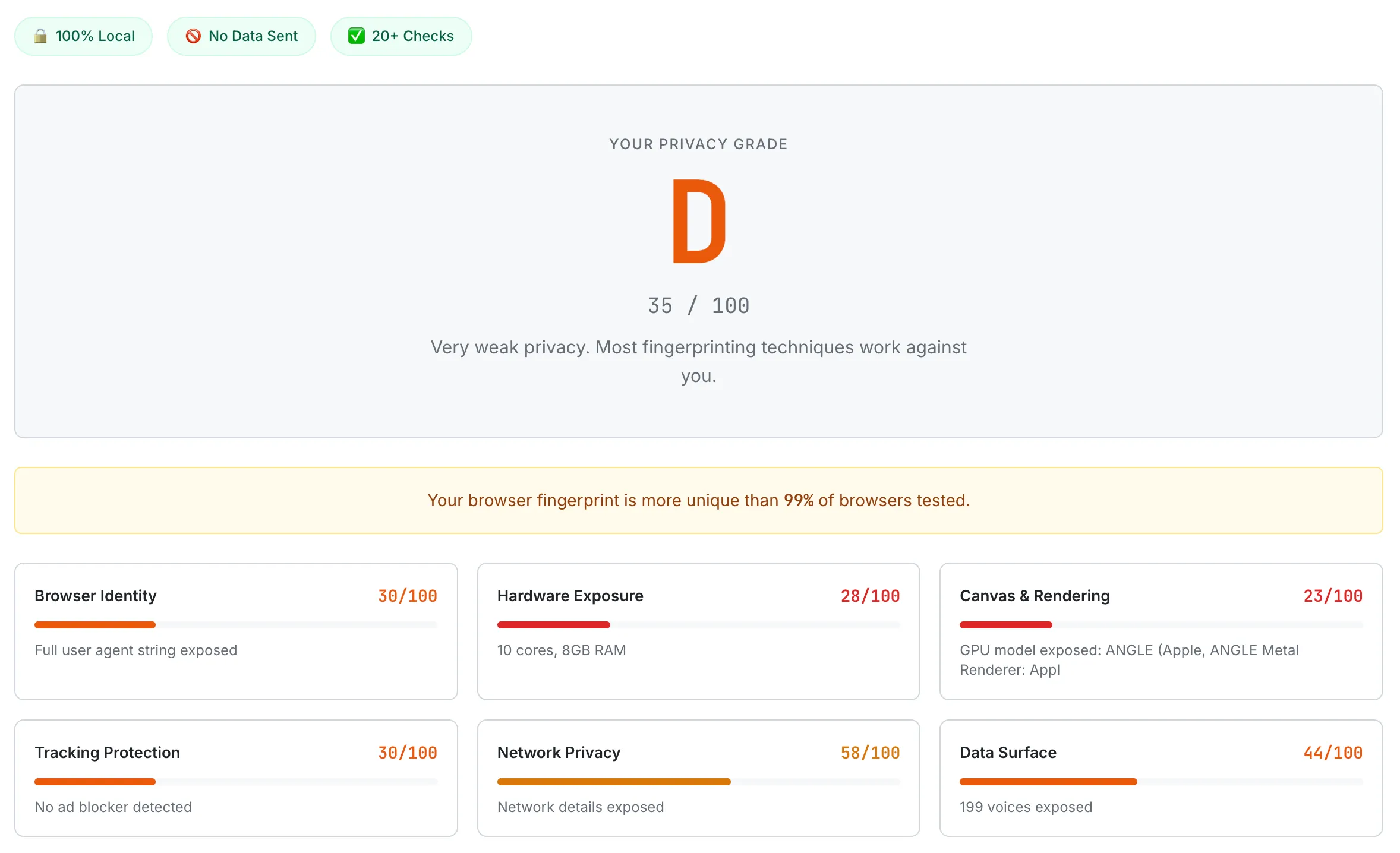
A Chrome browser with default settings scoring D (35/100). Canvas & Rendering scores the lowest at 23/100, with the GPU model fully exposed.
Chrome with default settings is the most exposed browser I tested. It scores in the low D range, typically between 35 and 45. Canvas fingerprinting works perfectly. Audio fingerprinting works perfectly. WebGL exposes detailed GPU information. The user agent string is verbose. Do Not Track is off by default. Global Privacy Control is not supported. Third-party cookies are allowed. Every storage API is fully accessible. Chrome makes zero effort to protect against fingerprinting in its default configuration, which is not surprising given that Google's business model depends on advertising and tracking. Chrome is not a privacy tool; it is a platform for Google's ad business that happens to also browse the web.
Firefox with its standard Enhanced Tracking Protection enabled scores meaningfully higher, typically in the C+ to B- range. Firefox blocks known third-party trackers by default, partitions cookies and storage by site, and strips some identifying information from the user agent string. Enabling Firefox's strict mode pushes the score higher by blocking cross-site tracking cookies entirely, blocking cryptominers and fingerprinters from known tracking domains, and reducing the information exposed through various APIs. With the privacy.resistFingerprinting flag enabled in about:config, Firefox scores in the B+ to A- range by standardizing many fingerprinting vectors: canvas returns a uniform output, the timezone reports as UTC, the screen resolution is rounded, and the user agent is generalized.
Brave's fingerprinting protection is the most impressive of any mainstream browser. With Brave Shields set to "aggressive," Brave randomizes canvas output on every page load, adds noise to audio fingerprinting, blocks WebGL parameter leaks, strips the user agent, blocks WebRTC leaks by default, and blocks all known trackers and ads. Brave consistently scores in the B+ to A range with default settings, making it the highest-scoring mainstream browser out of the box. The randomization approach is particularly clever: instead of blocking fingerprinting APIs entirely (which can break websites), Brave lets them work but injects subtle random noise, so the output changes on every request and cannot be used as a stable identifier.
Safari's Intelligent Tracking Prevention (ITP) provides moderate protection. Safari blocks third-party cookies by default, limits the lifetime of first-party cookies set via JavaScript, and partitions storage by site. However, Safari does not block canvas or audio fingerprinting, and its WebGL implementation exposes standard GPU information. Safari typically scores in the C to C+ range — better than Chrome, worse than Firefox strict or Brave.
The biggest surprise from testing was how many "privacy" browser extensions actually make your privacy worse. Extensions that block ads, modify page content, or inject custom CSS can add unique characteristics to your browser's fingerprint. If you are the only user with a specific combination of extensions installed, those extensions make your browser more identifiable, not less. The best privacy extensions are the ones that millions of other people also use (like uBlock Origin), because a fingerprint shared with millions of users is not a useful identifier. A niche extension with 500 users makes you one of 500 — practically unique. This counterintuitive finding — that adding privacy tools can reduce privacy — became one of the key educational points the tool communicates in its recommendations.
What's Next
The current version of the browser privacy checker provides a snapshot: here is your privacy posture right now. But privacy is not static. You install extensions, change settings, update browsers, switch VPNs. The tool should help you track your privacy over time, not just measure it once.
Historical comparison. The most requested feature is the ability to rescan and see whether your privacy improved. The tool would store your previous scores in localStorage (never on a server) and show a before-and-after comparison when you run the check again. "Last time you scored a D+. After enabling Firefox's strict mode, you now score a B-. Your Canvas and Rendering category improved by 45 points." This turns the tool from a one-time diagnostic into an ongoing privacy companion that rewards users for taking action.
Browser-specific recommendations. Currently, the recommendations are the same regardless of which browser you use. The next version would detect your browser and tailor the advice accordingly. Chrome users would see recommendations like "Switch to Brave or Firefox for built-in fingerprinting protection" alongside Chrome-specific settings they can change. Firefox users would see instructions for enabling privacy.resistFingerprinting. Brave users would see how to enable aggressive shields. Safari users would see how to enable advanced tracking prevention. The recommendations become a personalized action plan rather than a generic checklist.
Entropy estimation improvement. The current scoring system treats each check as equally informative within its category, but in practice, some checks carry far more identifying information than others. Canvas fingerprinting has roughly 5.7 bits of entropy, while screen color depth has maybe 1 or 2 bits. A more sophisticated scoring model would weight individual checks by their actual entropy contribution, producing a score that more accurately reflects how identifiable you are. This requires building a database of check results across many users to calculate real-world entropy values, which introduces a privacy challenge: how do you measure entropy without collecting user data? The answer is likely a local-only estimation model based on published research data rather than live collection.
WebGPU fingerprinting. As browsers adopt the WebGPU API to replace WebGL, a new fingerprinting surface is emerging. WebGPU exposes detailed information about the GPU's capabilities, supported features, and performance characteristics. Early research suggests that WebGPU fingerprinting could be even higher-entropy than WebGL because it exposes more granular hardware details. Adding WebGPU checks to the tool as browser support matures will keep it relevant as the fingerprinting landscape evolves.
The browser privacy landscape is an arms race. Trackers develop new fingerprinting techniques, browsers develop new defenses, and the cycle continues. A privacy checker that does not evolve with this landscape quickly becomes obsolete. The roadmap is designed to keep the tool useful not just today but as new tracking vectors emerge and new defenses are deployed. For a deeper look at how fingerprinting works and what you can do about it, read our guide: What Your Browser Reveals About You: A Guide to Digital Fingerprinting.