What Your Browser Reveals About You: A Guide to Digital Fingerprinting
Every time you visit a website, your browser silently hands over dozens of data points — your screen size, installed fonts, GPU model, timezone, and more. Combined, these details create a unique fingerprint that can track you across the web without cookies, without your consent, and without any way to delete it.
You have probably heard of cookies. You have probably clicked "Accept All" on hundreds of cookie banners without reading them. And you probably assume that if you clear your cookies or browse in incognito mode, you are invisible online. You are not. There is a tracking technique that is far more persistent, far harder to block, and far less understood than cookies. It is called browser fingerprinting, and your browser is leaking the data that powers it right now.
Browser fingerprinting does not plant anything on your device. It does not need to. Instead, it reads the configuration of your browser and hardware — information your browser freely shares with every website you visit — and uses that configuration as an identifier. Think of it like a physical fingerprint: you leave one on every surface you touch, and no two are exactly the same. Except in this case, the surfaces are websites, and the fingerprint is the unique combination of your screen resolution, operating system, installed fonts, graphics card, audio processing stack, and dozens of other technical details.
This guide will walk you through exactly what data your browser exposes, how fingerprinting technology works under the hood, who is using it and why, and what you can realistically do to protect yourself. Whether you are a developer who wants to understand the technical mechanics or a privacy-conscious user who wants practical defense strategies, this guide covers the full landscape of browser fingerprint privacy.
What Is Browser Fingerprinting?
Browser fingerprinting is a tracking technique that identifies users by collecting and combining multiple attributes of their browser and device configuration. Unlike cookies, which store a unique identifier on your device that you can delete, a fingerprint is derived from information your browser already exposes through standard web APIs. There is nothing to delete because nothing was stored. The identifier is computed from your existing setup every time you visit a page. While the fingerprint itself can't be erased, the broker profiles and tracking networks that link it to your identity can be reduced — see our guide on how to delete your data online for the GDPR / CCPA opt-out workflow.
The concept is rooted in information theory. Any single data point — say, your screen resolution of 1920×1080 — is shared by millions of people. It tells a tracker almost nothing on its own. But when you combine your screen resolution with your timezone (America/New_York), your installed fonts (382 fonts including Fira Code and Operator Mono), your GPU (NVIDIA GeForce RTX 4070), your browser version (Firefox 128.0), your operating system (macOS 14.5), your preferred languages (en-US, ko), your number of CPU cores (12), and dozens of other attributes, the combination becomes remarkably unique.
How unique? The Electronic Frontier Foundation's Cover Your Tracks project (formerly Panopticlick) has been studying this question since 2010. Their research found that 83.6% of browsers they tested had a unique fingerprint — meaning that out of hundreds of thousands of browsers in their dataset, no two shared the exact same combination of attributes. For browsers with Flash or Java enabled (which exposed even more data points), the uniqueness rate jumped to 94.2%. Even without those plugins, the modern web platform exposes enough information through JavaScript APIs alone to make most browsers uniquely identifiable.
The critical difference between fingerprinting and cookie-based tracking is persistence. When you clear your cookies, your cookie-based identity is reset. When you open a private browsing window, cookies from your normal session are not available. But your browser fingerprint does not change when you clear cookies. It does not change in private browsing mode. It does not change when you switch user accounts on the same machine. The fingerprint is a property of your browser and hardware configuration, and that configuration stays the same regardless of what privacy buttons you click.
This makes browser fingerprinting one of the most powerful tracking mechanisms on the web today — and one of the hardest for ordinary users to understand, detect, or prevent.
What Data Does Your Browser Share?
Every time your browser loads a web page, it makes dozens of pieces of information available to any JavaScript running on that page. This information was originally designed for legitimate purposes — helping websites render content correctly, adapt layouts to different screens, and deliver the right language and timezone. But each data point also serves as a potential fingerprinting vector. Here are the major categories.
User Agent. The navigator.userAgent string tells websites your browser name, version, operating system, and platform. A typical User Agent string looks like Mozilla/5.0 (Macintosh; Intel Mac OS X 10_15_7) AppleWebKit/537.36 (KHTML, like Gecko) Chrome/128.0.0.0 Safari/537.36. This single string reveals your OS (macOS), its version (10.15.7), your browser (Chrome), and its version (128.0). Modern browsers are moving toward reducing the information in the User Agent string through the User-Agent Client Hints API, but the legacy string still carries significant entropy.
Screen and Display. Your browser exposes screen.width, screen.height, screen.colorDepth, window.devicePixelRatio, and the available screen dimensions (which exclude the taskbar or dock). A 2560×1440 display at 2x pixel ratio with 24-bit color depth is a different fingerprint from a 1920×1080 display at 1x with 24-bit color depth. The number of distinct screen configurations in use across the web is surprisingly high, especially when you factor in multi-monitor setups where the available dimensions differ from the total screen dimensions.
Hardware. The navigator.hardwareConcurrency property reveals your CPU core count (or logical processor count). The navigator.deviceMemory property (available in Chromium-based browsers) exposes your approximate RAM in gigabytes. The navigator.maxTouchPoints property tells websites whether your device has a touchscreen and how many simultaneous touch points it supports. A desktop machine with 16 cores, 32 GB of RAM, and zero touch points has a very different hardware profile than a tablet with 8 cores, 4 GB of RAM, and 10 touch points.
Canvas Fingerprinting. The HTML5 Canvas API allows JavaScript to draw text and graphics to an invisible canvas element, then read back the rendered pixel data using toDataURL() or getImageData(). The key insight is that different combinations of GPU, graphics driver, operating system, and font rendering engine produce slightly different pixel-level output for the same drawing instructions. Two machines asked to draw the same text in the same font at the same size will produce pixel data that differs at the sub-pixel level. These differences are invisible to the human eye but produce distinct hashes when the pixel data is processed. Canvas fingerprinting is one of the most powerful fingerprinting techniques because the rendering differences are hardware-level and extremely difficult to spoof.
WebGL Fingerprinting. WebGL exposes even more about your graphics hardware than Canvas. The WEBGL_debug_renderer_info extension reveals your GPU vendor and model directly — for example, "Google Inc. (NVIDIA)" as the vendor and "ANGLE (NVIDIA, NVIDIA GeForce RTX 4070 Direct3D11 vs_5_0 ps_5_0)" as the renderer. Beyond the GPU model, WebGL also exposes supported extensions, maximum texture sizes, shader precision formats, and other rendering capabilities. The combination of these WebGL parameters creates a detailed hardware profile that is highly identifying.
Audio Fingerprinting. The AudioContext API lets JavaScript generate audio signals and analyze how they are processed. By creating an oscillator node and processing the output through the browser's audio stack, a fingerprinting script can detect subtle differences in how audio is rendered. These differences arise from variations in audio hardware, drivers, and the browser's audio processing implementation. The resulting audio fingerprint is another hardware-level identifier that is independent of user settings.
Installed Fonts. While modern browsers have restricted direct font enumeration, fingerprinting scripts can still detect installed fonts through a side-channel technique. They render text in a fallback font and measure its dimensions, then render the same text specifying a target font. If the dimensions change, the font is installed. By testing hundreds of font names, a script can build a list of installed fonts. Someone with the default system fonts has a very different list from a graphic designer with 500 Adobe fonts installed.
Timezone and Language. The Intl.DateTimeFormat().resolvedOptions().timeZone API reveals your exact IANA timezone (e.g., "America/Chicago"), and navigator.languages reveals your preferred language list (e.g., ["en-US", "en", "ko"]). While timezone alone does not uniquely identify someone, a Korean-speaking user in the America/Chicago timezone is far less common than an English-only speaker in the same timezone.
Storage APIs. The availability and behavior of storage mechanisms like localStorage, sessionStorage, IndexedDB, and the Cache API can vary between browsers and configurations. Whether these APIs are available, their quota limits, and how they behave under different privacy settings all contribute to the fingerprint.
WebRTC. The WebRTC API, designed for peer-to-peer communication (video calls, file sharing), can expose your local and public IP addresses even when you are using a VPN or proxy. This is one of the most critical privacy leaks in modern browsers, and we will cover it in detail in a dedicated section below.
How Browser Fingerprinting Works
The technical process of browser fingerprinting follows a straightforward pipeline: collect, hash, compare, and track.
Step 1: Collection. When you visit a website that uses fingerprinting, a JavaScript library runs in the background. The most well-known open-source fingerprinting library is FingerprintJS, but there are many others, and many companies build proprietary solutions. The script systematically queries every available browser API to collect data points. It reads the User Agent, screen properties, hardware specifications, timezone, languages, and installed plugins. It creates a hidden Canvas element, draws specific text and shapes to it, and reads back the pixel data. It initializes a WebGL context and queries the GPU renderer. It creates an AudioContext and processes a test signal. It probes for installed fonts by measuring text rendering dimensions. This entire collection process typically completes in under 200 milliseconds and is invisible to the user.
Step 2: Hashing. The collected data points are concatenated into a single string or data structure and then hashed using a fast hashing algorithm like MurmurHash3 or SHA-256. The hash serves as the fingerprint identifier — a fixed-length string like a3f2b8c91d4e7f06 that represents the unique combination of all collected attributes. Two browsers with the exact same configuration will produce the same hash. Any difference in any attribute will produce a completely different hash.
Step 3: Comparison. The computed fingerprint hash is sent to the tracking company's server, where it is compared against a database of previously seen fingerprints. If the hash matches an existing record, the server knows this is a returning visitor. If the hash is new, a new tracking record is created. This comparison happens on every page load, building a browsing history tied to the fingerprint rather than to a cookie.
Step 4: Tracking. Once a fingerprint is associated with a visitor, it can be used for everything cookies are used for: building browsing profiles, targeting advertisements, conducting analytics, and identifying users across different websites. Because fingerprinting does not require storing anything on the user's device, it works even when cookies are blocked, deleted, or unavailable. It works in private browsing mode. It works across browser sessions. It persists until the user changes their hardware or browser configuration significantly enough to produce a different hash.
There are two main approaches to fingerprint matching. Deterministic matching requires an exact match of the fingerprint hash. If even one data point changes — a browser update, a font installation, a screen rotation — the hash changes and the link is broken. This approach is precise but fragile. Probabilistic matching uses fuzzy comparison algorithms that tolerate small changes. If 95% of the data points match, the system considers it the same user even if a few attributes have changed. This approach is more resilient but introduces the possibility of false positives (incorrectly linking two different users). Most commercial fingerprinting solutions use a combination of both approaches, using deterministic matching when possible and falling back to probabilistic matching when the fingerprint has partially changed.
Who Uses Browser Fingerprinting and Why
Browser fingerprinting is used across multiple industries for both legitimate and problematic purposes. Understanding who uses it and why helps frame the privacy debate more accurately than a blanket "fingerprinting is bad" argument.
Advertisers and ad-tech companies. The advertising industry is the largest consumer of fingerprinting technology. As browsers have cracked down on third-party cookies (Safari blocked them in 2020, Firefox enabled Total Cookie Protection by default in 2022, and Chrome explored phasing them out before reversing course in 2024 in favor of a user-choice model), advertisers have increasingly turned to fingerprinting as an alternative tracking mechanism. Fingerprinting enables cross-site tracking (following a user from a news site to a shopping site to a social media platform), ad targeting (showing ads based on browsing history), and conversion attribution (determining whether someone who saw an ad later made a purchase). The shift from cookies to fingerprinting represents the advertising industry's adaptation to cookie restrictions, not a reduction in tracking.
Fraud detection and prevention. Financial institutions, e-commerce platforms, and payment processors use browser fingerprinting as a security measure. If someone logs into a bank account from a fingerprint that has never been associated with that account, the system can flag it as suspicious and require additional verification. If a fraudster creates multiple accounts on an e-commerce platform to abuse promotional offers, fingerprinting can detect that all those accounts are being operated from the same browser. In this context, fingerprinting serves the user's interest by protecting against unauthorized access and fraud. This is arguably the most legitimate use case for the technology.
Analytics companies. Web analytics tools use fingerprinting to count unique visitors more accurately. Cookie-based unique visitor counts are unreliable because users clear cookies, use multiple browsers, and browse in private mode. Fingerprinting provides a more stable identifier for distinguishing between a single user who visits 50 times and 50 different users who each visit once. While this application seems benign, it still involves tracking users without their explicit consent.
Government surveillance. Law enforcement and intelligence agencies have used browser fingerprinting as part of their surveillance capabilities. The Tor Browser — the primary tool for anonymous web browsing — has been specifically targeted by government agencies attempting to de-anonymize its users through fingerprinting techniques. In 2013, the FBI exploited a vulnerability in the Tor Browser's Firefox base to deploy a Network Investigative Technique (NIT) on a hidden service hosting illegal content. The exploit bypassed Tor's anonymity protections and sent users' real IP addresses and MAC addresses to an FBI server, successfully de-anonymizing users who believed they were browsing anonymously. Government use of fingerprinting raises the most serious civil liberties concerns, particularly in authoritarian countries where identifying dissident internet users can have life-threatening consequences.
The dual-use nature of fingerprinting makes policy responses complicated. The same technology that prevents a hacker from draining your bank account also enables an advertising company to build a detailed profile of your browsing habits without your knowledge. The same technique that helps an e-commerce site prevent coupon fraud also allows a government to identify anonymous whistleblowers. Any discussion of browser fingerprint privacy must grapple with this tension between legitimate security applications and invasive surveillance capitalism.
The Entropy Problem
The reason browser fingerprinting works so well comes down to a concept from information theory called entropy. In this context, entropy measures how much identifying information a single data point provides. The more entropy a data point carries, the more it narrows down the set of possible users who could have that value.
Entropy is measured in bits. One bit of entropy means the data point divides the population in half. Two bits divide it into quarters. Three bits into eighths. The formula is straightforward: if a particular value is shared by a fraction p of the population, it provides -log2(p) bits of entropy. If your screen resolution is shared by 10% of users, it provides about 3.3 bits of entropy. If your installed font list matches only 0.5% of users, it provides about 7.6 bits of entropy.
Here is what the research tells us about the entropy of common fingerprinting attributes. Screen resolution typically provides about 4 bits of entropy. There are many possible screen resolutions, but a few (1920×1080, 2560×1440, 1366×768) dominate. The User Agent string provides roughly 10 bits of entropy because the combination of browser, version, and OS is diverse but not random. Installed fonts provide between 5 and 7 bits of entropy depending on the user — a default OS installation has low entropy, while a designer's workstation with hundreds of custom fonts is highly unique. Canvas fingerprinting provides roughly 5.7 bits of entropy on average, driven by hardware-level rendering differences. WebGL parameters contribute another 4 to 6 bits. The timezone alone provides about 3 to 4 bits (there are roughly 24 major timezone offsets, but the distribution is not uniform). The audio fingerprint adds about 3 to 5 bits.
The critical insight is that entropy from independent data points is additive. If your screen resolution provides 4 bits and your User Agent provides 10 bits and your canvas fingerprint provides 5.7 bits and your installed fonts provide 6 bits, the combination provides roughly 25.7 bits of entropy. And those are just four attributes out of the dozens that fingerprinting scripts collect.
The AmIUnique research project, run by INRIA (the French national research institute for digital science), has been collecting fingerprinting data since 2014. Their research found that 89.4% of desktop browsers in their dataset had a unique fingerprint. When you add up the entropy contributions from the major fingerprinting vectors — User Agent (10 bits), canvas (5.7 bits), fonts (5–7 bits), WebGL (4–6 bits), screen (4 bits), timezone (3–4 bits), audio (3–5 bits), and several others — the theoretical combined entropy can exceed 30 bits. With 30+ bits, you can uniquely distinguish between over a billion entities. Given roughly 5.5 billion internet users worldwide, a browser fingerprint combining 20+ attributes carries enough entropy to narrow identification down to a very small group, if not a single individual.
This is why simply changing one or two settings is not an effective defense against fingerprinting. Even if you reduce the entropy of your User Agent by spoofing it to a generic value, the remaining data points — canvas, WebGL, fonts, audio, hardware — still provide more than enough entropy to identify you. To meaningfully reduce your fingerprint's uniqueness, you need to reduce entropy across multiple categories simultaneously, which is why effective anti-fingerprinting tools take a comprehensive approach rather than targeting individual attributes.
Canvas and WebGL: The Most Powerful Fingerprints
Among all fingerprinting vectors, Canvas and WebGL fingerprinting are the most potent because they exploit hardware-level rendering differences that are nearly impossible for users to control or spoof without breaking web functionality.
Canvas fingerprinting works by using the HTML5 Canvas API to draw a predefined scene — typically a combination of text strings in specific fonts, colored shapes, gradients, and mathematical curves. The drawing instructions are identical for every browser that executes them. But the rendered output is not. The reason is that the pipeline from drawing instruction to pixel output involves multiple layers of software and hardware, each of which can introduce subtle variations. The operating system's font rendering engine (DirectWrite on Windows, Core Text on macOS, FreeType on Linux) applies different sub-pixel antialiasing, hinting, and smoothing algorithms. The GPU's graphics driver processes the rasterization differently depending on the hardware architecture. Even the same GPU model can produce different output on different driver versions.
A fingerprinting script draws its test scene to a hidden canvas, then calls canvas.toDataURL() to extract the rendered image as a Base64-encoded PNG string. This string is then hashed to produce the canvas fingerprint. Two browsers on the same operating system with the same GPU and driver version will typically produce the same hash. Two browsers on different hardware or OS combinations will almost always produce different hashes. The differences in the rendered pixels are invisible to the naked eye — we are talking about single-pixel color value variations — but they are consistent and reproducible, which makes them perfect for fingerprinting.
Research has shown that canvas fingerprinting alone provides approximately 5.7 bits of entropy on average, but this varies significantly depending on the diversity of the testing population. In a dataset of users all running Chrome on Windows with similar Intel GPUs, the canvas entropy is lower because many users produce identical renderings. In a mixed-platform dataset with diverse hardware, canvas entropy can exceed 8 bits.
WebGL fingerprinting goes further by directly exposing hardware information. The WEBGL_debug_renderer_info extension provides two critical values: the WebGL vendor (e.g., "Google Inc. (NVIDIA)") and the WebGL renderer (e.g., "ANGLE (NVIDIA, NVIDIA GeForce RTX 4070 Direct3D11 vs_5_0 ps_5_0, D3D11)"). The renderer string essentially tells any website your exact GPU model. Beyond the debug info, WebGL also exposes the maximum texture size, the maximum viewport dimensions, the number of vertex attributes, the supported shader precision formats, and the list of supported WebGL extensions. Each of these parameters adds entropy.
Additionally, WebGL fingerprinting can use a technique similar to Canvas fingerprinting: drawing a 3D scene and reading back the rendered pixels. Because 3D rendering involves the GPU's shader pipeline, which varies more across hardware than 2D Canvas rendering, WebGL rendering fingerprints can be even more distinctive than Canvas fingerprints.
The combination of Canvas and WebGL fingerprinting is particularly powerful because they are difficult to defend against without significant trade-offs. Blocking the Canvas API entirely breaks many legitimate web applications, including image editors, charts, maps, and games. Blocking WebGL breaks 3D content, data visualizations, and many modern web applications. The most practical defense is to inject noise into the Canvas and WebGL output — adding small random variations to the rendered pixels so that the fingerprint changes on every read. Firefox's privacy.resistFingerprinting setting does this, and the Brave browser adds Canvas and WebGL noise by default. However, a fingerprinter that detects inconsistent readings from the same browser can infer that anti-fingerprinting measures are in place, which is itself a data point that adds entropy.
The WebRTC IP Leak Problem
WebRTC (Web Real-Time Communication) is a browser API designed for peer-to-peer communication — video calls, voice calls, file transfers, and screen sharing. Services like Google Meet, Zoom (web client), Discord, and many others depend on WebRTC for their core functionality. To establish peer-to-peer connections, WebRTC uses a protocol called ICE (Interactive Connectivity Establishment) to discover network paths between two clients. As part of this discovery process, the browser generates ICE candidates that contain the client's IP addresses.
The privacy problem is that JavaScript running on any web page can create an RTCPeerConnection object, initiate an ICE candidate gathering process, and read the generated candidates — all without the user's knowledge or consent, and without any visible indication in the browser UI. The ICE candidates can contain both the user's local (private) IP address (e.g., 192.168.1.42) and their public IP address. This happens even if the user has not granted any permissions and is not making a video call.
The most critical scenario is when WebRTC leaks your real IP address while you are using a VPN. A VPN routes your network traffic through an encrypted tunnel, hiding your real IP address from websites. But WebRTC's ICE candidate gathering operates at a level that can bypass the VPN tunnel, particularly on Windows. A website can use WebRTC to discover your real IP address behind the VPN, completely undermining the privacy protection the VPN was supposed to provide.
The local IP address leak is also significant for fingerprinting purposes. Your local IP address (like 192.168.1.42 or 10.0.0.15) is determined by your router's DHCP configuration and is relatively stable over time. While a local IP address alone does not identify you on the internet, it provides additional entropy when combined with other fingerprinting vectors. If a fingerprinter knows that a particular browser fingerprint is associated with local IP 192.168.1.42 on a /24 subnet, and a subsequent visit from a slightly different fingerprint (perhaps after a browser update) comes from the same local IP, the fingerprinter can link the two visits with high confidence.
To mitigate WebRTC IP leaks, you have several options. Firefox allows you to disable WebRTC entirely by setting media.peerconnection.enabled to false in about:config, though this breaks video calling and other WebRTC-dependent features. Chrome and Chromium-based browsers offer extensions like WebRTC Leak Prevent or uBlock Origin (which includes a WebRTC leak protection setting) that restrict ICE candidate generation to prevent IP disclosure without fully disabling WebRTC. The Brave browser disables WebRTC IP leak by default. The Tor Browser also blocks WebRTC entirely to prevent IP leaks that would compromise anonymity.
It is worth noting that the WebRTC specification has been updated to address this privacy concern. The RTCPeerConnection API now supports an iceTransportPolicy option that can restrict candidate gathering to relay candidates only (which go through a TURN server and do not expose the client's IP). However, this is a policy that the website's JavaScript must opt into — a fingerprinting script can simply ignore it and use default settings to gather host candidates that contain IP addresses. The defense must come from the browser or the user, not from the website.
How to Protect Yourself
Protecting yourself from browser fingerprinting is harder than protecting yourself from cookie tracking. There is no "clear fingerprint" button. There is no fingerprint equivalent of incognito mode. But there are practical steps you can take to significantly reduce your fingerprinting surface. The key principle is this: the best defense is not to block fingerprinting scripts (which is a cat-and-mouse game you will lose) but to make your browser look like as many other browsers as possible.
Choose a privacy-focused browser. Your choice of browser is the single most impactful decision you can make. Firefox, Brave, and Tor Browser all include built-in anti-fingerprinting protections that Chrome and Edge do not. Firefox's Enhanced Tracking Protection (set to Strict mode) blocks known fingerprinting scripts and restricts access to several fingerprinting APIs. Brave adds randomized noise to Canvas, WebGL, and audio fingerprints by default, changes your reported language to en-US, and blocks third-party fingerprinting scripts. The Tor Browser goes further than any other browser: it normalizes your screen size to predefined buckets, uses a single set of system fonts, blocks Canvas and WebGL reading by default, disables WebRTC entirely, and sets the timezone to UTC. Every Tor Browser user looks identical to every other Tor Browser user, which is the ultimate anti-fingerprinting strategy.
Enable strict tracking protection. In Firefox, go to Settings > Privacy & Security and select "Strict" under Enhanced Tracking Protection. This blocks known fingerprinting scripts, cross-site tracking cookies, cryptominers, and social media trackers. In Brave, the default "Standard" shields already provide strong fingerprinting protection, but you can increase it to "Aggressive" in brave://settings/shields. In Safari, the built-in Intelligent Tracking Prevention provides some fingerprinting protection by restricting API access for known trackers.
Install uBlock Origin. uBlock Origin is not just an ad blocker — it is a wide-spectrum content blocker that can prevent fingerprinting scripts from loading in the first place. Enable the "Block CSP reports" and "Prevent WebRTC from leaking local IP addresses" options in uBlock Origin's settings. With its default filter lists, uBlock Origin blocks many known fingerprinting scripts before they can execute. It is available for Firefox, Chrome, and Edge, though the Firefox version is more powerful due to Manifest V3 restrictions in Chrome.
Use a VPN — but check for WebRTC leaks. A reputable VPN hides your real IP address from websites you visit, which removes one significant data point from your fingerprint. However, as discussed in the WebRTC section, VPNs can be undermined by WebRTC IP leaks. After connecting to your VPN, test for WebRTC leaks using a tool like BrowserLeaks or our Browser Privacy Checker. If your real IP is exposed, configure your browser or install an extension to block WebRTC IP leak.
Disable WebRTC if you do not need it. If you do not use browser-based video calling (Google Meet, Zoom web client, Discord in browser), you can disable WebRTC entirely. In Firefox, navigate to about:config and set media.peerconnection.enabled to false. This eliminates the WebRTC IP leak vector completely. If you do use browser-based video calling, consider using those services in a separate browser profile where WebRTC is enabled, and keep WebRTC disabled in your primary browsing profile.
Enable Firefox's privacy.resistFingerprinting. This is the nuclear option for Firefox users. Navigate to about:config and set privacy.resistFingerprinting to true. This setting activates a comprehensive suite of anti-fingerprinting measures: it spoofs the User Agent to a generic value, sets your timezone to UTC, disables the Gamepad API, returns a spoofed screen resolution, adds noise to Canvas and WebGL readback, normalizes font enumeration, and much more. The downside is that it can break some websites — sites that depend on accurate timezone information, screen dimensions, or canvas rendering may not function correctly. But for users who prioritize privacy over convenience, it is the most thorough single setting available in any mainstream browser.
Consider the Tor Browser for maximum privacy. If your threat model requires strong anonymity, the Tor Browser is the gold standard. It routes your traffic through multiple encrypted relays, making it extremely difficult to trace your connection back to your IP address. Combined with its aggressive fingerprinting protections (every Tor Browser instance looks identical), it provides the strongest combination of network anonymity and browser fingerprint protection available. The trade-offs are significant: slower browsing speeds (due to Tor network routing), some websites blocking Tor exit nodes, and a less convenient browsing experience. But for high-stakes privacy needs — journalists, activists, whistleblowers, or anyone facing surveillance by a powerful adversary — the Tor Browser is the right tool.
The "blend in vs. block" paradox. There is a fundamental tension in anti-fingerprinting strategy. Blocking fingerprinting APIs (refusing to share data) makes you stand out because most browsers do not block these APIs. Spoofing fingerprinting APIs (sharing false data) can also make you stand out if the false data is inconsistent (e.g., claiming to be Windows while your font list reveals macOS). The most effective strategy is to blend in — to make your browser configuration look like the most common configuration possible. This is why Tor Browser normalizes everything to a single profile: if every Tor user looks the same, no individual Tor user can be fingerprinted within the Tor population. For non-Tor users, the blending strategy means using popular browsers (Firefox or Chrome, not niche alternatives), keeping the default font set, using common screen resolutions, and avoiding exotic browser extensions or settings that make your configuration unique.
The Paradox of Privacy Tools
Here is an uncomfortable truth about browser privacy: some privacy measures make you more identifiable, not less. This is not a theoretical concern. It is a well-documented phenomenon that creates real dilemmas for privacy-conscious users.
Consider JavaScript blocking. If you disable JavaScript entirely (using an extension like NoScript or by toggling the browser setting), you eliminate nearly all fingerprinting vectors. No JavaScript means no Canvas fingerprinting, no WebGL querying, no font detection, no audio fingerprinting. On paper, this sounds like the ultimate defense. In practice, it makes you extremely unique. Less than 2% of web users disable JavaScript. By blocking it, you have joined a tiny minority that stands out dramatically. A tracker does not need to fingerprint your Canvas rendering if it can simply note "this user has JavaScript disabled" and cross-reference that with your IP address and the handful of other data points available without JavaScript (User Agent, Accept headers, screen resolution via CSS media queries). You have traded one type of fingerprint for another, and the new one may be even more unique.
The same paradox applies to browser extensions. Each extension you install can alter your browser's behavior in ways that are detectable. Content blockers change which resources load (and the timing of page loads). Privacy extensions modify HTTP headers, block APIs, or inject spoofed values. The list of installed extensions is itself a fingerprinting vector — while Chrome has restricted direct extension detection, side-channel detection (measuring load times of extension resources, detecting DOM modifications, or observing API behavior changes) can still reveal which extensions are installed. A user running uBlock Origin, Privacy Badger, Canvas Blocker, and WebRTC Leak Prevent has a different browser behavior profile from a user with no extensions. If only 0.1% of users run that exact combination of extensions, the extensions themselves contribute about 10 bits of entropy.
The Tor Browser addresses this paradox through uniformity. Every Tor Browser installation is configured identically: same window size, same fonts, same extension set (only NoScript, pre-configured), same User Agent, same everything. When the fingerprint-relevant properties of every Tor Browser are identical, no individual user stands out within the Tor population. But this only works because enough people use Tor to form a meaningful anonymity set. If only 100 people used Tor, being "one of 100 Tor users" would not provide much anonymity. The Tor Browser's privacy model depends on the size of its user base.
For non-Tor users, the practical implication is this: be strategic about which privacy tools you use. Each additional privacy tool adds complexity to your browser configuration, and that complexity can paradoxically make you more unique. The highest-impact, lowest-risk combination for most users is a mainstream browser with built-in protections (Firefox with Strict tracking protection or Brave with default shields) plus a single comprehensive content blocker (uBlock Origin) plus a VPN. This combination provides strong privacy protection while keeping your browser configuration within the range of what millions of other users look like. Adding a dozen specialized privacy extensions on top of this can push you into a configuration that is shared by almost no one, defeating the purpose.
Testing Your Browser's Privacy
Understanding your browser's fingerprint starts with measuring it. Several tools exist that analyze your browser's exposed data points and tell you how unique your configuration is. Testing your fingerprint before and after making privacy changes is the only way to know whether those changes actually helped.
Browser Privacy Checker (SudoTool). Our own Browser Privacy Checker runs a comprehensive fingerprinting analysis directly in your browser. It tests your Canvas fingerprint, WebGL renderer, audio fingerprint, installed fonts, screen properties, hardware specifications, WebRTC IP leak status, and dozens of other vectors. It provides a clear summary of what your browser is revealing and flags the highest-risk exposures. Everything runs client-side — no data is sent to any server.
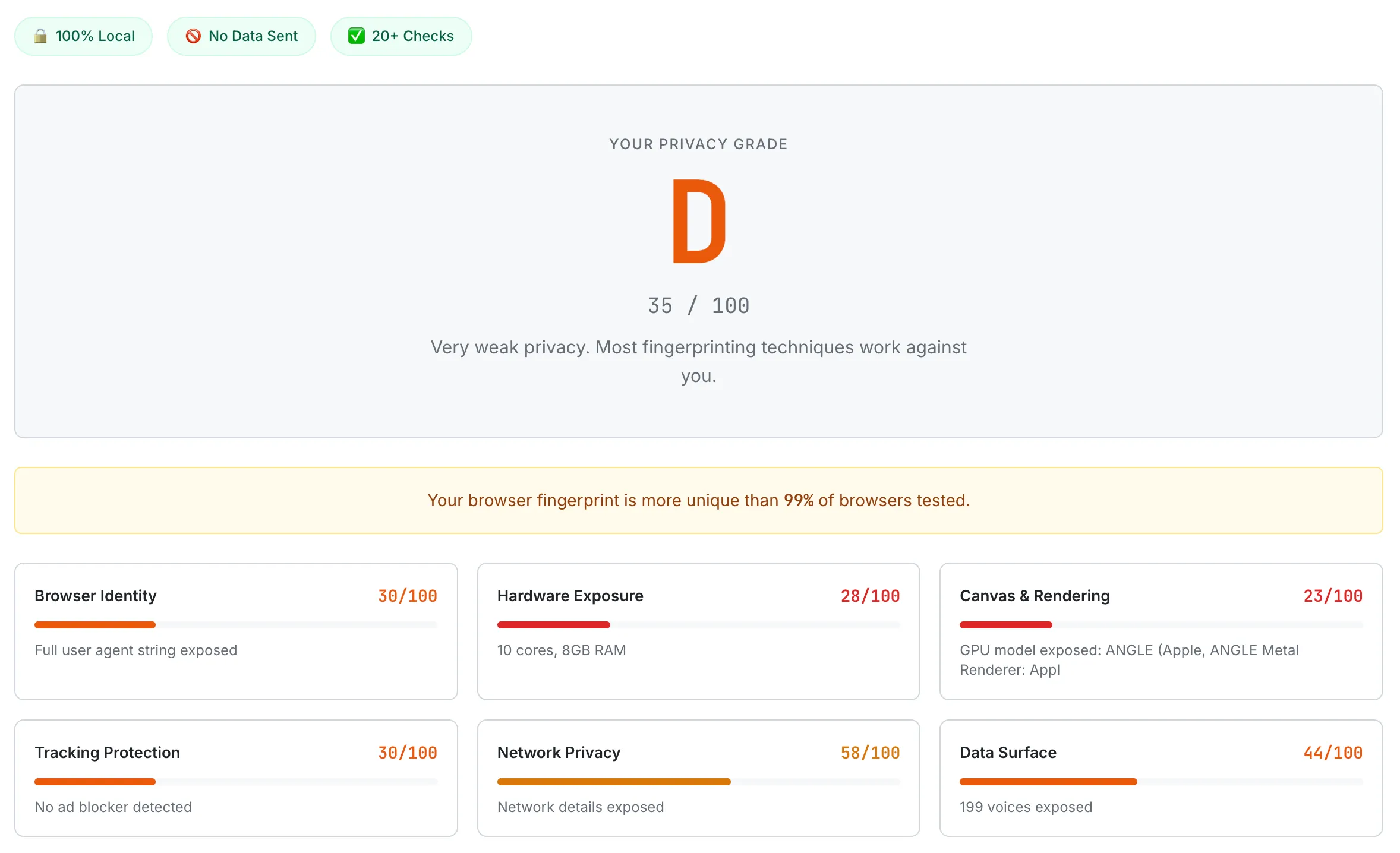
A default Chrome browser scoring D (35/100). Canvas & Rendering scores the lowest at 23/100, with the GPU model fully exposed through WebGL.
Cover Your Tracks (EFF). The Electronic Frontier Foundation's Cover Your Tracks tool (coveryourtracks.eff.org) tests your browser against a large dataset of previously tested browsers to determine how unique your fingerprint is. It provides a bits-of-entropy breakdown showing which attributes contribute most to your uniqueness. This tool is particularly useful for understanding your fingerprint's entropy relative to the general population.
AmIUnique. The AmIUnique project (amiunique.org), run by the INRIA research team, provides detailed fingerprint analysis with a research-oriented perspective. It shows the percentage of users in their dataset who share each of your browser attributes, making it easy to identify which specific data points are making you unique. Their dataset has been collecting fingerprints since 2014 and contains millions of samples.
BrowserLeaks. BrowserLeaks (browserleaks.com) is the most comprehensive technical testing suite available. It provides separate dedicated tests for Canvas fingerprinting, WebGL fingerprinting, WebRTC IP leaks, font detection, screen properties, JavaScript API access, and more. Unlike tools that provide a single summary score, BrowserLeaks lets you drill into each fingerprinting vector individually, which is invaluable for debugging specific privacy configurations.
When testing your browser's privacy, this is a reliable process to follow. First, test your browser with its default settings to establish a baseline. Note which vectors are exposed and how unique your fingerprint is. Second, make one privacy change at a time (enable strict tracking protection, install uBlock Origin, enable privacy.resistFingerprinting, etc.) and re-test after each change. This lets you see the specific impact of each modification. Third, compare your fingerprint across different browsers to understand how browser choice affects your privacy surface. You may find that simply switching from Chrome to Firefox with Strict tracking protection reduces your fingerprint exposure more than any combination of Chrome extensions.
The Future of Browser Fingerprinting
The browser fingerprinting landscape is shifting rapidly as browser vendors, standards bodies, regulators, and the advertising industry negotiate the future of web tracking. Several major developments are shaping where this technology is headed.
Google's Privacy Sandbox. Google's Privacy Sandbox initiative is the most consequential change in the web tracking ecosystem. Originally proposed as a replacement for third-party cookies in Chrome, the Privacy Sandbox includes the Topics API (which replaced the controversial FLoC proposal after privacy concerns). The Topics API observes the websites you visit and assigns you to broad interest categories (e.g., "Fitness," "Travel," "Cooking") without exposing your specific browsing history. Advertisers can target ads based on these categories without knowing who you are individually. The Privacy Sandbox also includes the Attribution Reporting API for measuring ad conversions without cross-site tracking. However, critics argue that the Privacy Sandbox still enables Google to maintain its advertising dominance while restricting competitors' tracking capabilities — a concern that led to regulatory scrutiny from the UK's Competition and Markets Authority.
Firefox's fingerprinting protections. Mozilla has been progressively strengthening Firefox's built-in fingerprinting defenses. Firefox's Enhanced Tracking Protection now blocks known fingerprinting scripts by default in Standard mode and adds API-level restrictions in Strict mode. Mozilla's long-term roadmap includes further restricting or normalizing high-entropy APIs like Canvas, WebGL, and font enumeration. The privacy.resistFingerprinting setting, which currently requires manual activation, may see elements of its protections promoted to default behavior in future Firefox versions. Mozilla has also been contributing to web standards discussions that aim to reduce fingerprinting surface at the specification level, so future browser APIs would be designed with fingerprinting resistance built in from the start.
Apple's Intelligent Tracking Prevention. Apple's Safari was the first major browser to aggressively combat tracking. Safari's Intelligent Tracking Prevention (ITP) uses machine learning to classify tracking behavior and restrict the capabilities of identified trackers. Safari limits the information available through the User Agent string, uses a simplified system font list to reduce font fingerprinting, and restricts some API access for known tracking domains. However, Safari does not inject noise into Canvas or WebGL output the way Firefox's privacy.resistFingerprinting or Brave's shields do, so hardware-level fingerprinting vectors remain largely exposed. Apple's commitment to privacy as a product differentiator suggests these protections will continue to strengthen over time.
Regulatory pressure. The legal landscape around fingerprinting is evolving. The European Union's GDPR treats browser fingerprints as personal data when they can identify an individual, meaning fingerprinting without consent is technically illegal for users in the EU. The proposed ePrivacy Regulation (still in negotiation) would explicitly require consent for fingerprinting, placing it under the same legal framework as cookies. If enacted, this would require websites to display consent banners for fingerprinting, similar to current cookie consent requirements. In the United States, state-level privacy laws like the California Consumer Privacy Act (CCPA) and its successor the CPRA provide some protections, though enforcement has been limited. The trend across jurisdictions is toward treating fingerprinting as a regulated tracking technology rather than an unregulated technical capability.
The arms race continues. Despite all these protective measures, the fundamental tension remains: the web platform needs to expose device information for legitimate purposes (rendering content, optimizing performance, providing accessibility features), and any exposed information can be repurposed for fingerprinting. Browser vendors are engaged in a continuous arms race with tracking companies — reducing API surface area and adding noise on one side, finding new side channels and developing more sophisticated correlation techniques on the other. New fingerprinting vectors continue to be discovered: researchers have demonstrated fingerprinting through CSS feature queries, battery API data (removed from Firefox in 2016 due to privacy concerns, though still available in Chromium browsers), Bluetooth device enumeration (restricted), and even CPU architecture detection through JavaScript execution timing. As some vectors are closed, others are opened by new web platform features.
The most likely future is not one where fingerprinting is eliminated, but one where the bar for effective fingerprinting is raised high enough that casual tracking becomes impractical, while well-resourced adversaries (nation-states, major ad networks) retain the capability. For the average user, the combination of browser-level protections, content blockers, and regulatory frameworks will provide meaningful (if imperfect) privacy improvements. For users facing advanced threats, the Tor Browser and similar anonymity tools will remain necessary.
Fingerprinting is one of eleven categories of web tracking — for the broader map (cookies, pixels, click IDs, mobile device IDs, email open pixels, identity graphs, and more), see our companion guide: How Websites Track You: A Complete 2026 Guide. And for the hidden data your photos carry rather than your browser — GPS coordinates, timestamps, and device IDs — see our guide to EXIF metadata and photo privacy. Curious about how we built our privacy checker and the technical decisions behind it? Read the dev log: Building a Browser Privacy Checker That Shows What Trackers See.
Frequently Asked Questions
Is browser fingerprinting legal?
It depends on your jurisdiction. Under the EU's General Data Protection Regulation (GDPR), browser fingerprints are classified as personal data when they can identify an individual, which means collecting them without a lawful basis (such as explicit consent) is illegal. In practice, enforcement has been inconsistent, and many companies fingerprint EU users without proper consent mechanisms. In the United States, there is no federal law specifically addressing fingerprinting, though state laws like the CCPA provide some protections for California residents. The legal landscape is evolving rapidly, and the proposed ePrivacy Regulation in the EU would create more explicit rules around fingerprinting consent.
Does incognito mode or private browsing prevent fingerprinting?
No. Private browsing mode prevents the browser from saving your browsing history, cookies, and form data locally. It does not change your browser's fingerprint. Your screen resolution, GPU, installed fonts, Canvas rendering, and all other fingerprinting vectors remain the same in private mode as in normal mode. Some browsers (notably Safari) do apply additional fingerprinting protections in private mode, such as restricting font enumeration and Canvas readback. But in Chrome and most Chromium-based browsers, private browsing provides no additional fingerprinting protection.
Can I completely prevent browser fingerprinting?
Not entirely, but you can significantly reduce your fingerprint's uniqueness. The most effective approach is using the Tor Browser, which normalizes every fingerprint-relevant property so that all Tor users look identical. For everyday browsing, using Firefox with Strict tracking protection and privacy.resistFingerprinting enabled provides strong (though imperfect) protection. The goal is not to make fingerprinting impossible but to make your fingerprint indistinguishable from a large group of other users.
Does using a VPN protect against fingerprinting?
A VPN protects against IP-based tracking by hiding your real IP address, but it does not protect against browser fingerprinting. Your browser fingerprint is derived from your browser and hardware configuration, not your network connection. A VPN and fingerprinting protection address different tracking vectors and are complementary — you ideally want both. However, be aware that WebRTC can leak your real IP even while using a VPN, so test for WebRTC leaks after connecting to your VPN.
How often does my browser fingerprint change?
Your fingerprint changes whenever a relevant attribute of your browser or hardware configuration changes. This includes browser updates (which change the User Agent string and may alter Canvas/WebGL rendering), operating system updates, graphics driver updates, installing or removing fonts, connecting an external monitor (which changes screen resolution), and changing browser settings or extensions. Major changes (like a browser or OS update) may alter your fingerprint enough that deterministic matching fails, but probabilistic matching systems can often link the old and new fingerprints because most attributes remain unchanged.